- Login into WebCADENCE™.
- Click the Reflect in the left navigation bar.
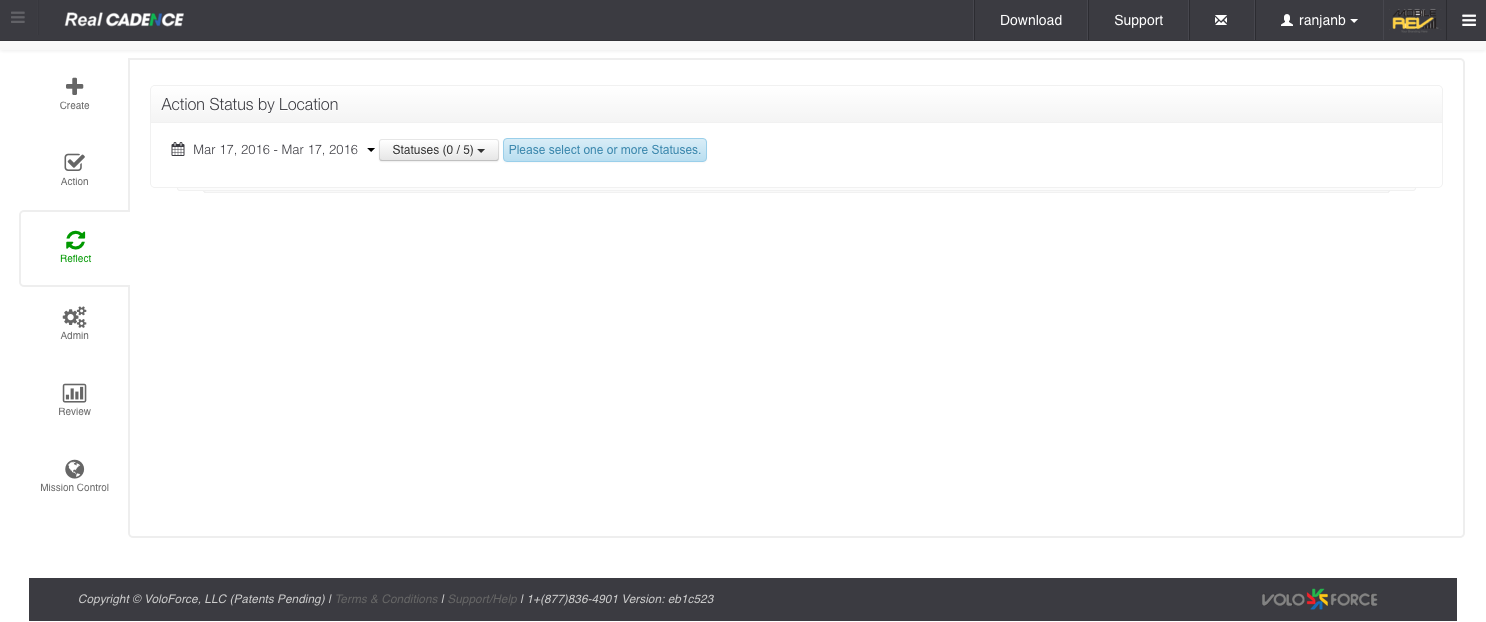
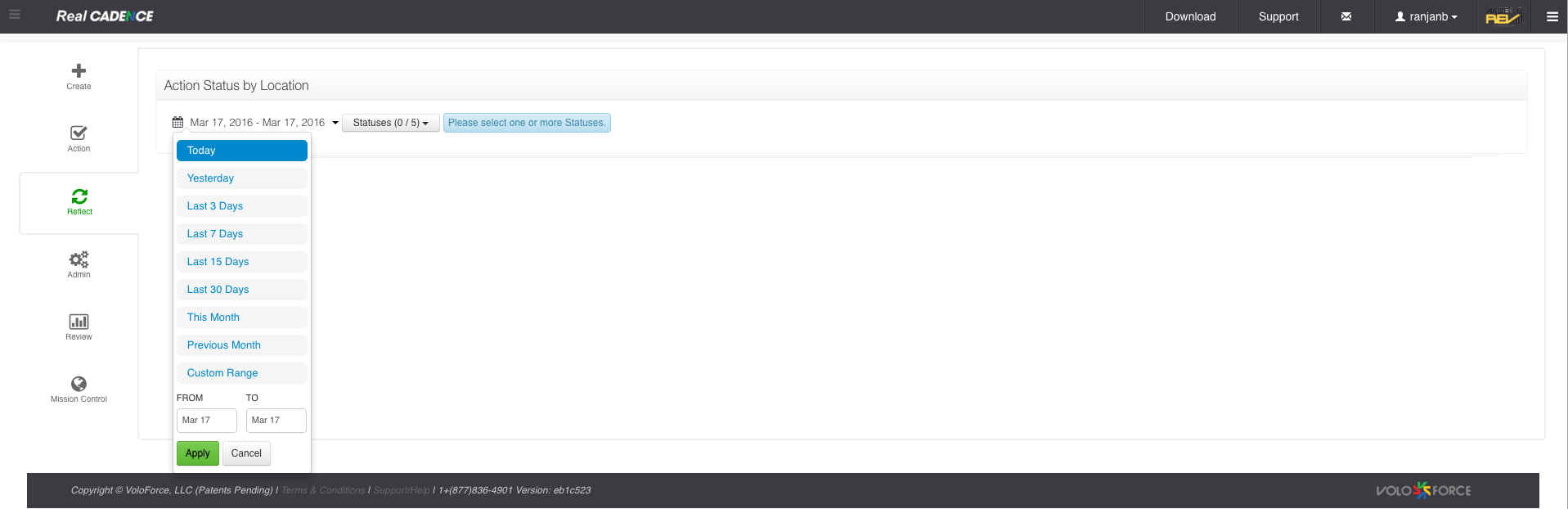
- Select a date range for which you want to review actions.
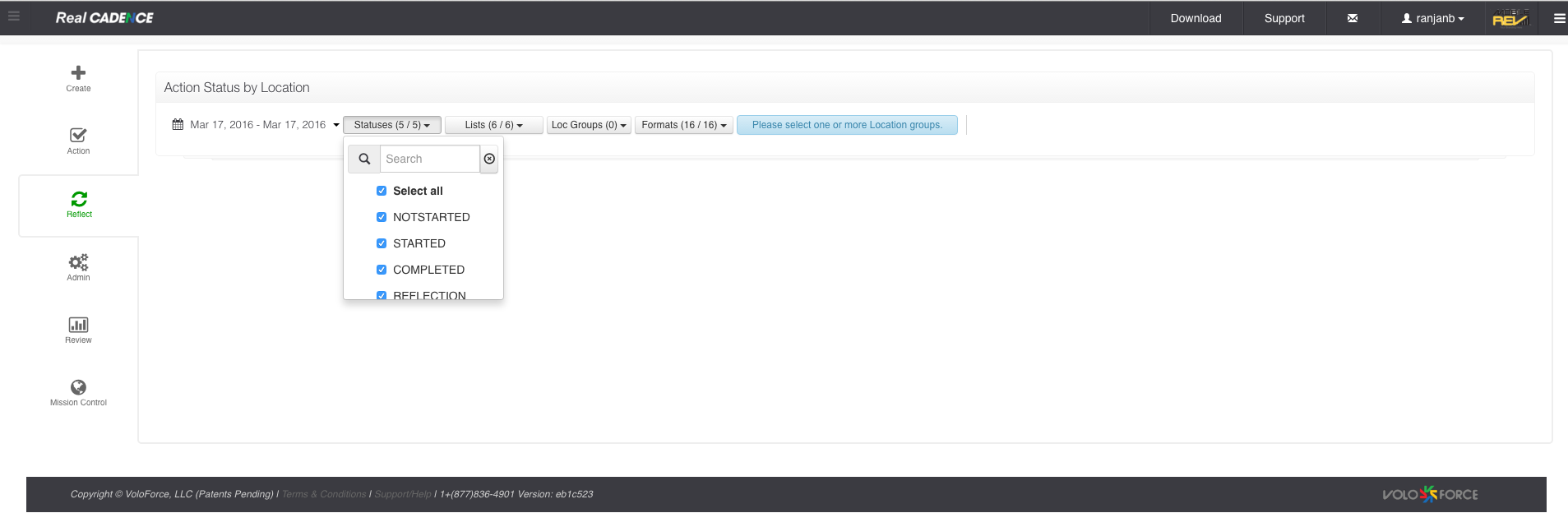
- Select the statuses you want to work on. By default all are selected.
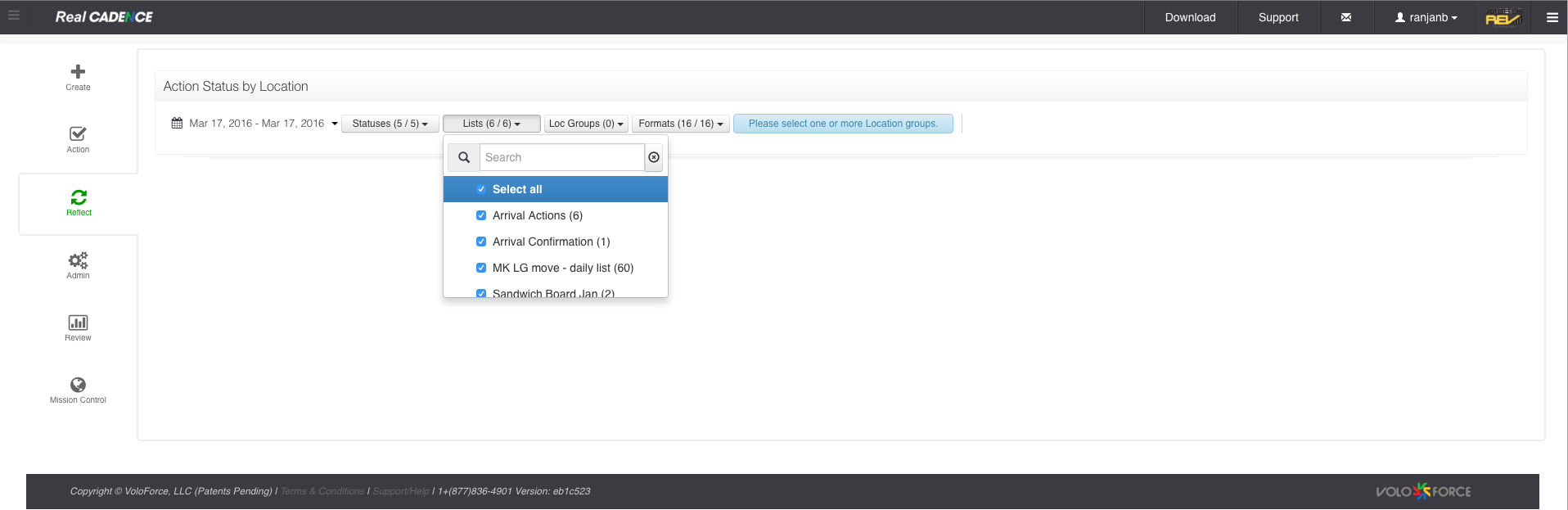
- Select the lists for which you want to do the review.
- Select the location group and click Apply Button.
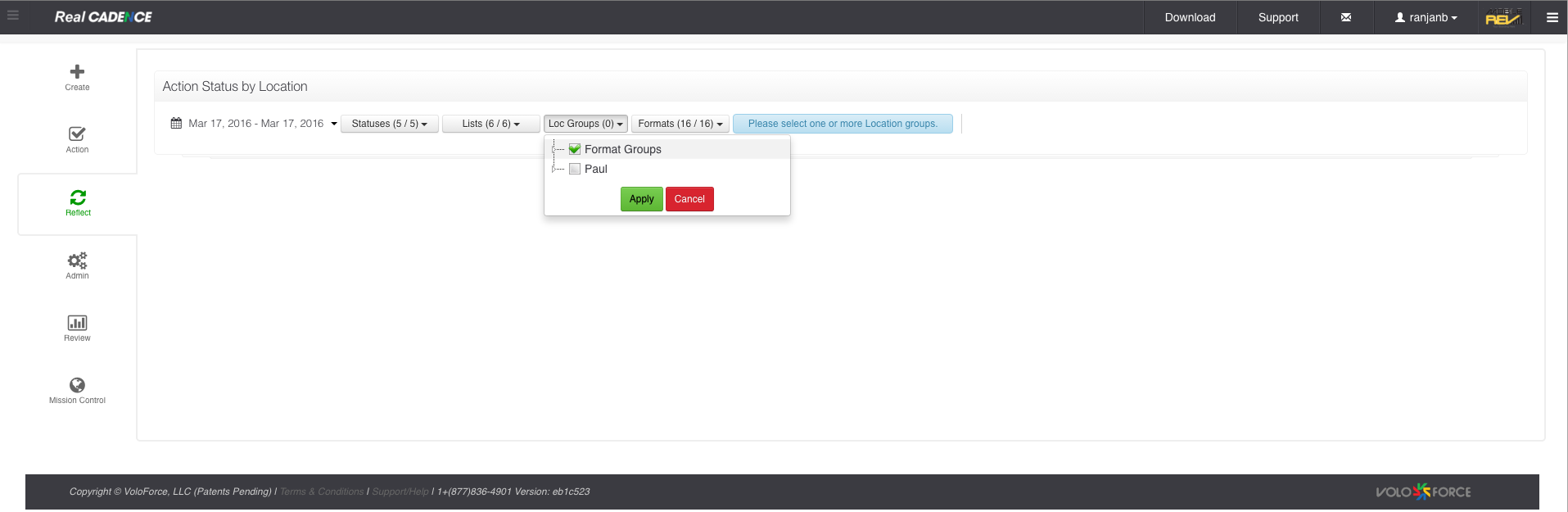
- Select Formats.
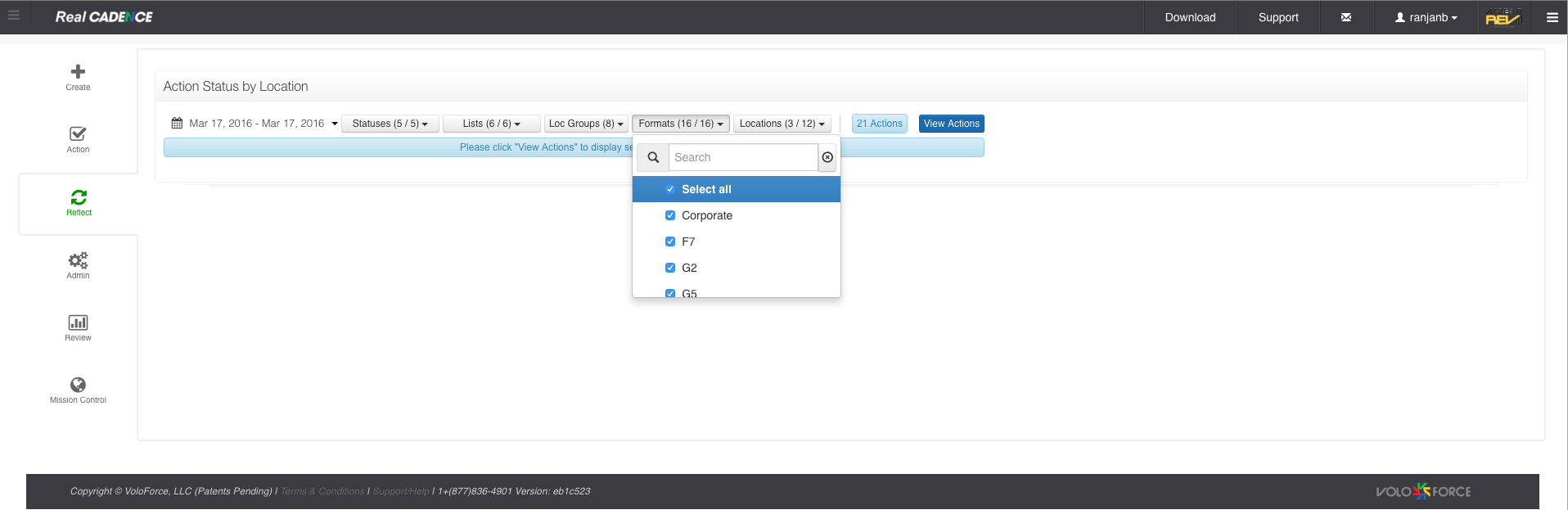
- Select the locations for which you want to review the actions.
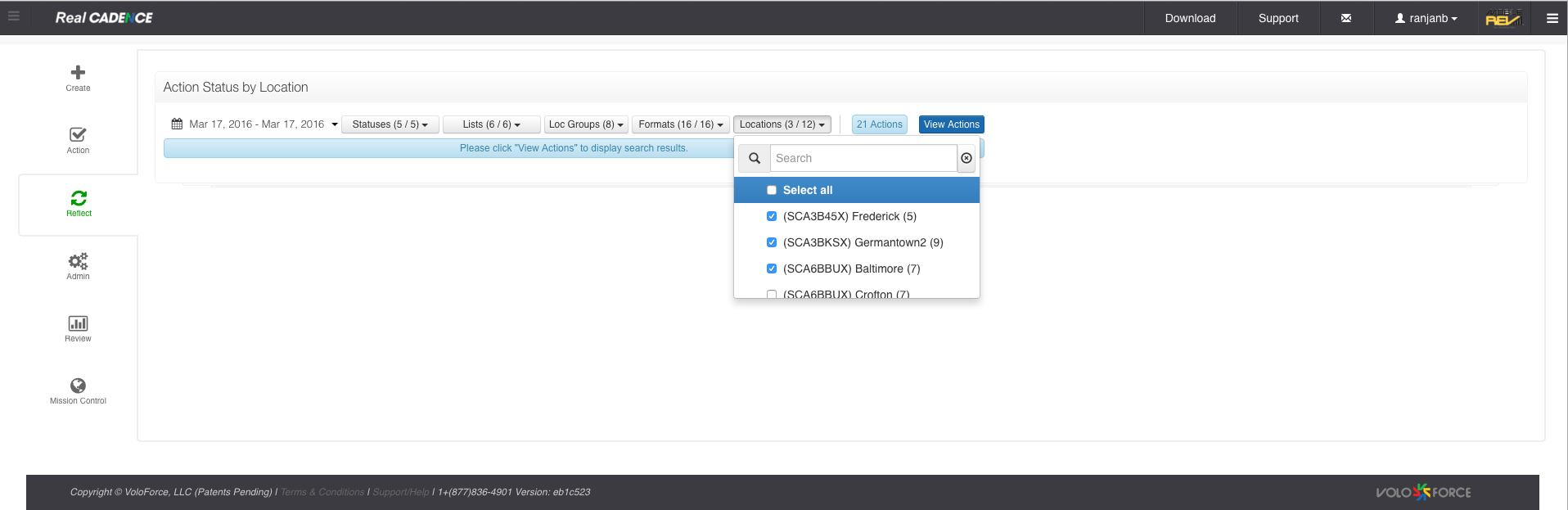
- Click View Actions Button.
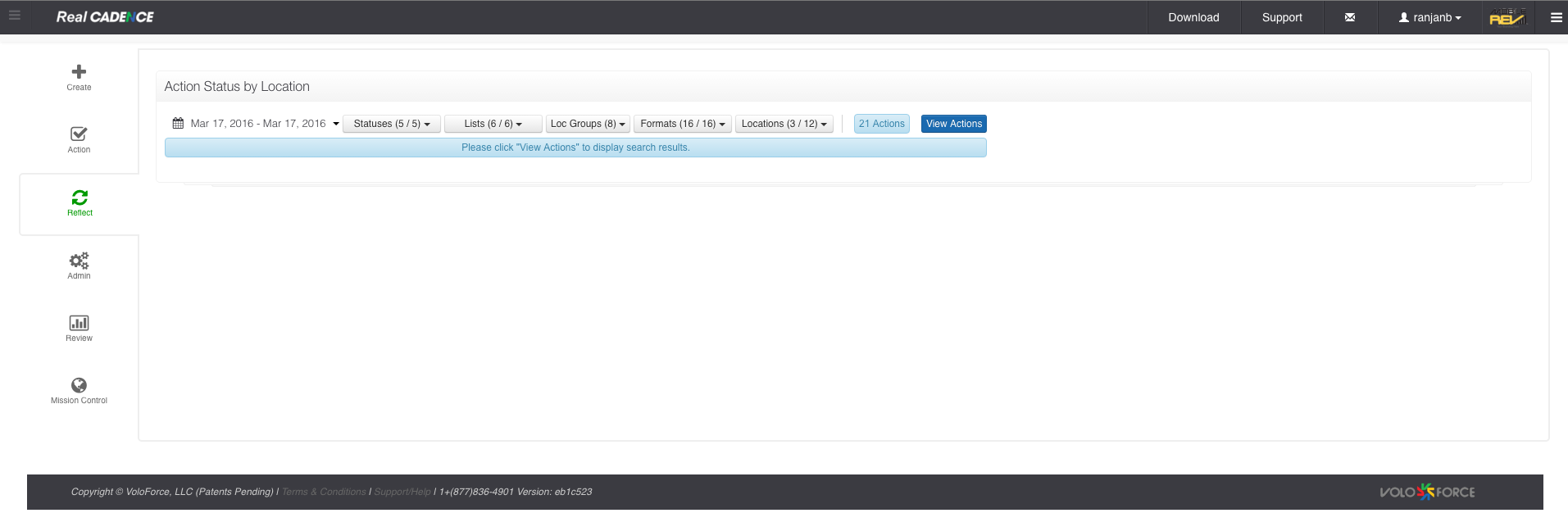
- Click the location that you want to audit.
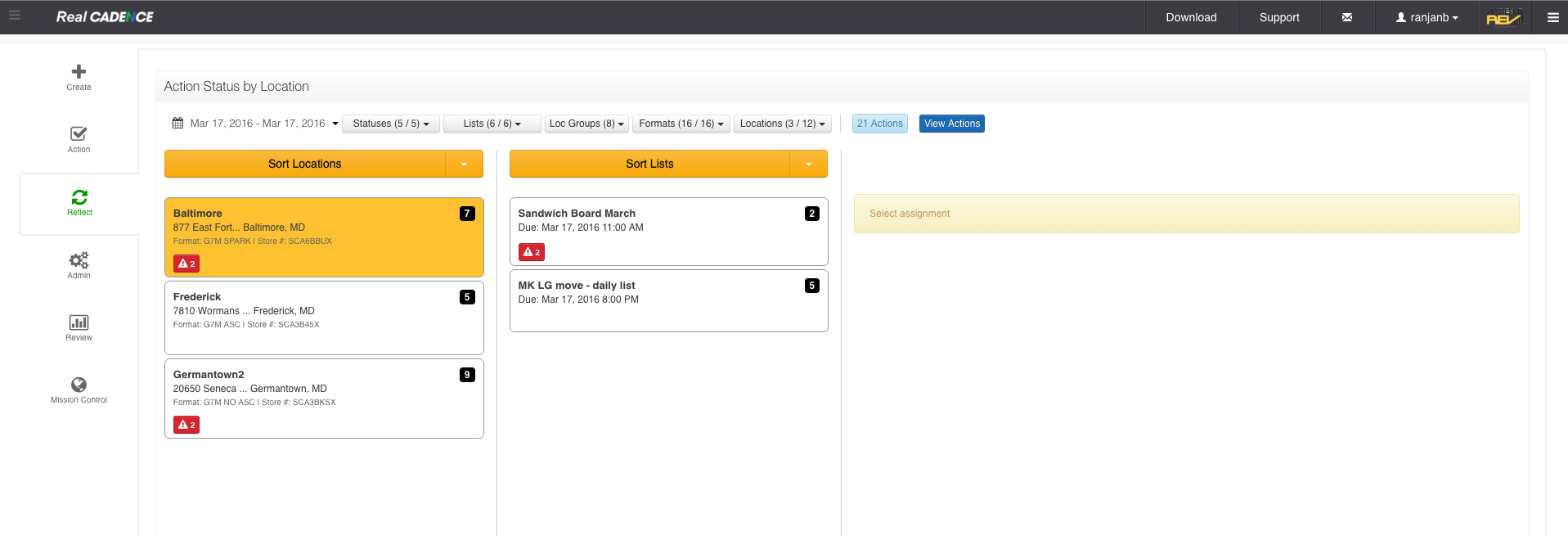
- Click the action list that you want to review for that location. A list of actions generated by the action list for the particular location displays on the right. The date and time of each action is color coded to represent its current status.
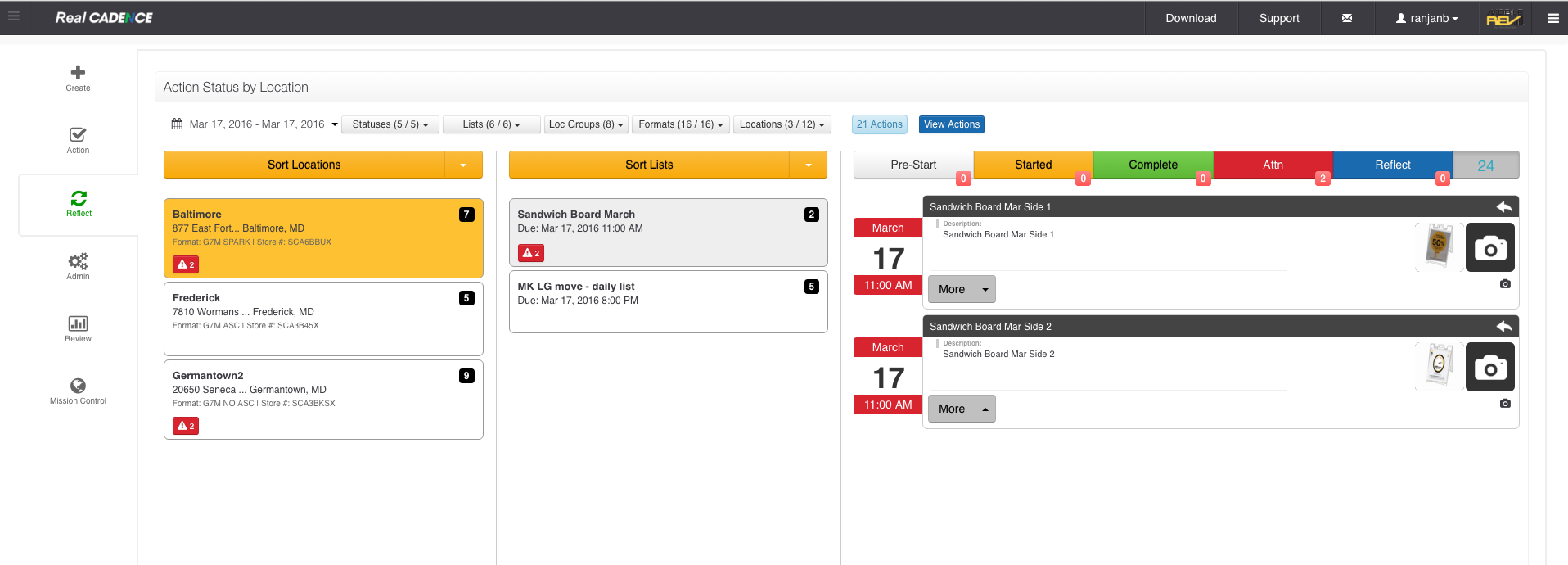
- To filter it by action status, click the toolbar above the list of actions.
- To address an action, click the More drop-down menu in the action's entry on the list. A pop-up opens to show available responses.
- To refresh the list of action statuses, double-click the countdown at the upper right.
How-to: Review Action Statuses for a Location

Comments
Please sign in to leave a comment.