- Login into WebCADENCE™.
- Click the Action in the left navigation bar.
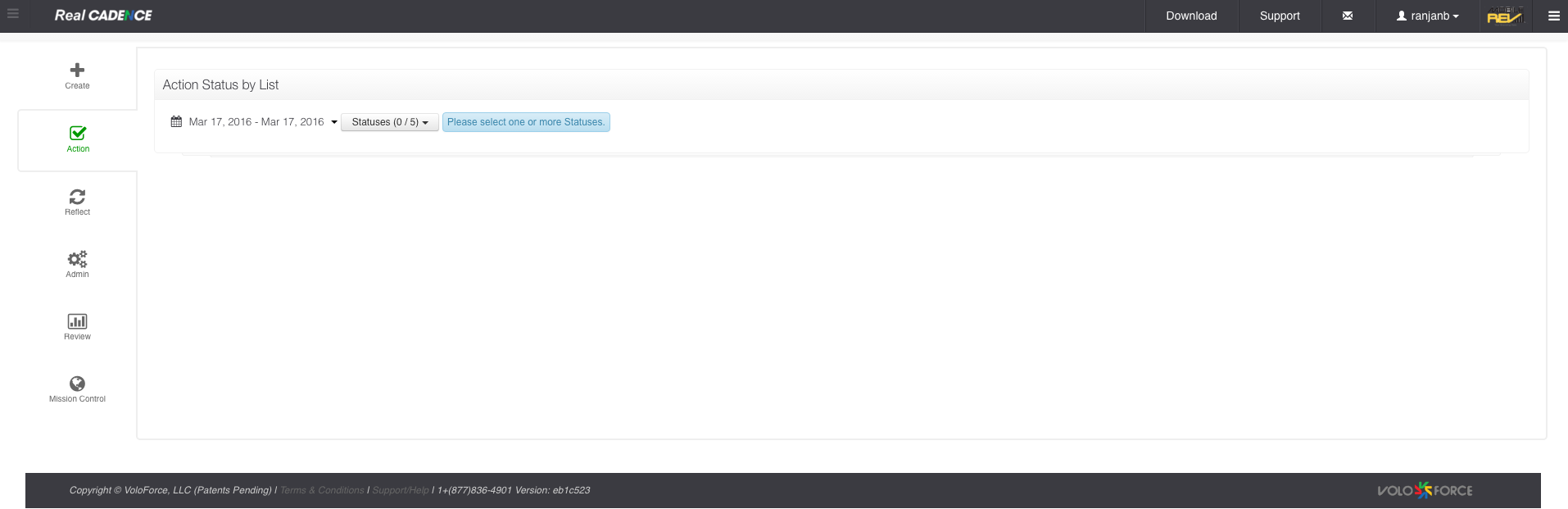
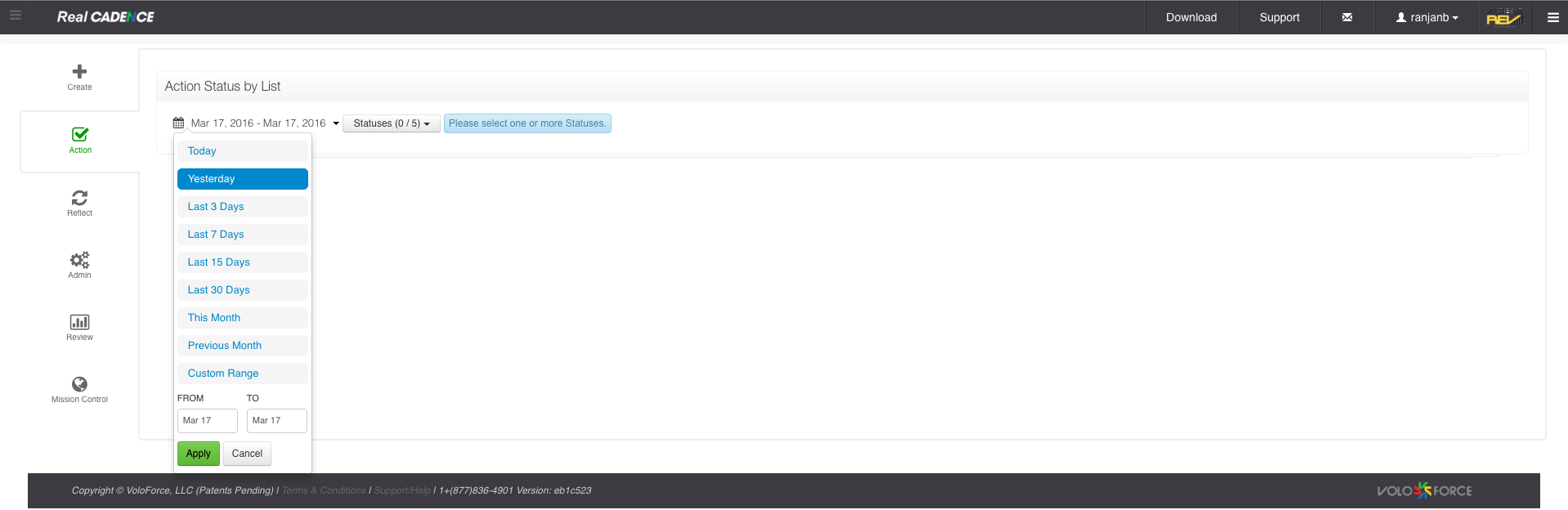
- Select a date range for which you want to review actions.
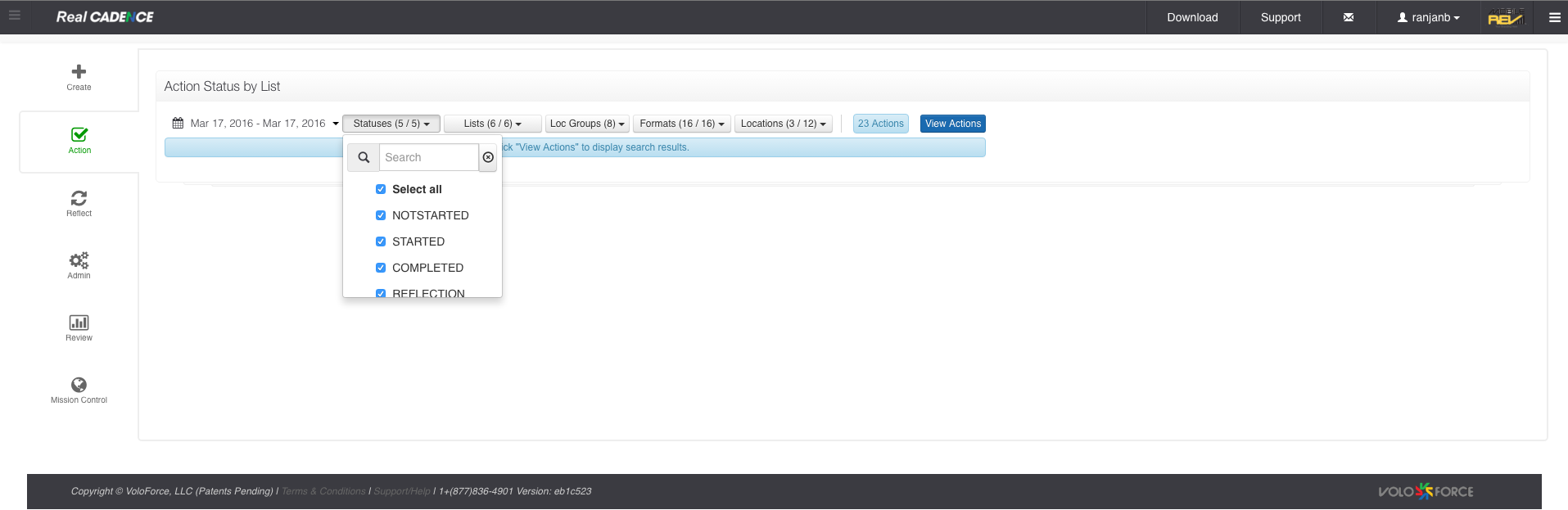
- Select the statuses you want to work on. By default all are selected.
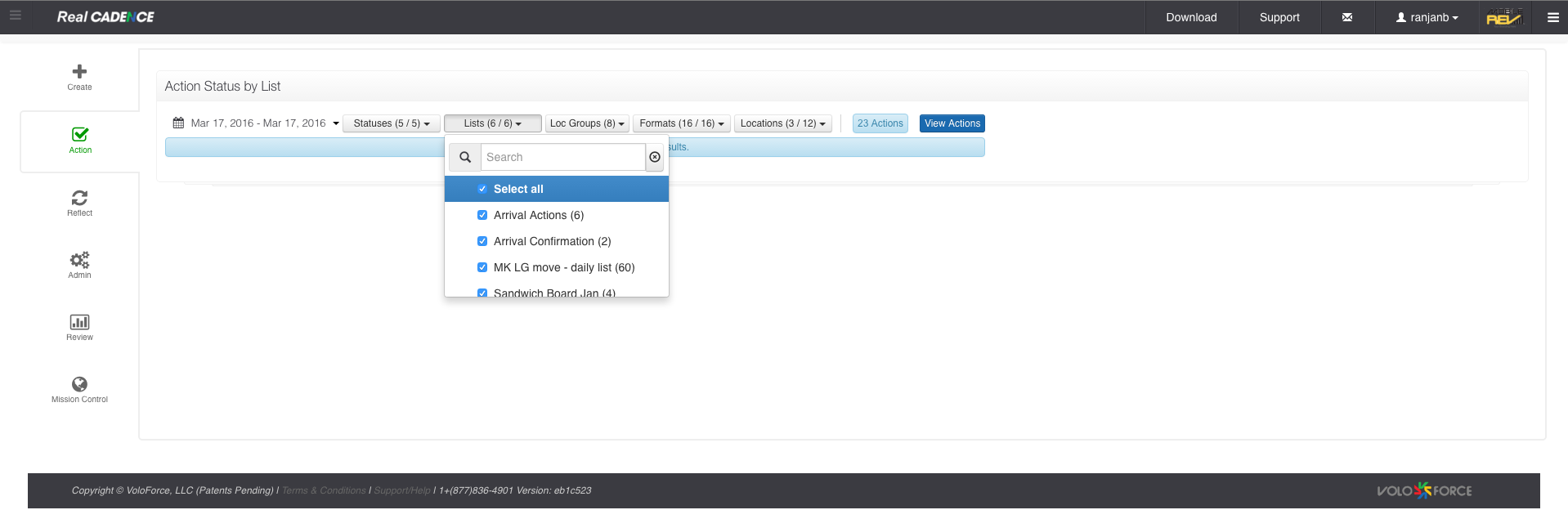
- Select the lists for which you want to do the review.
- Select the location group and click Apply Button.
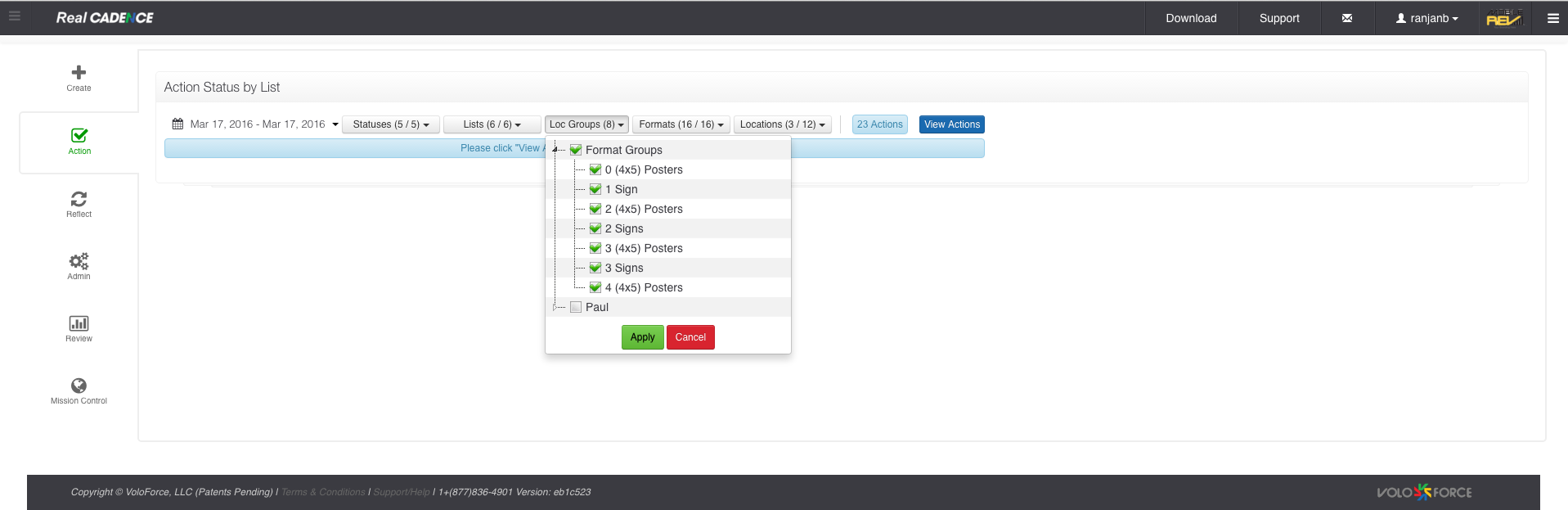
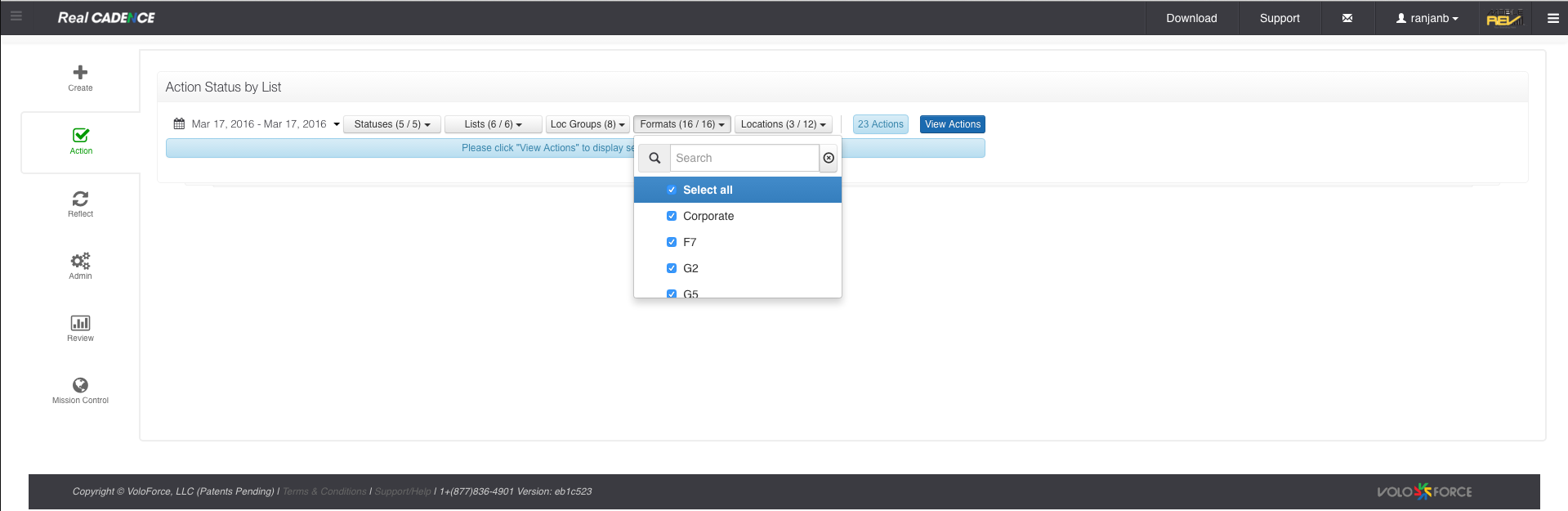
- Select Formats.
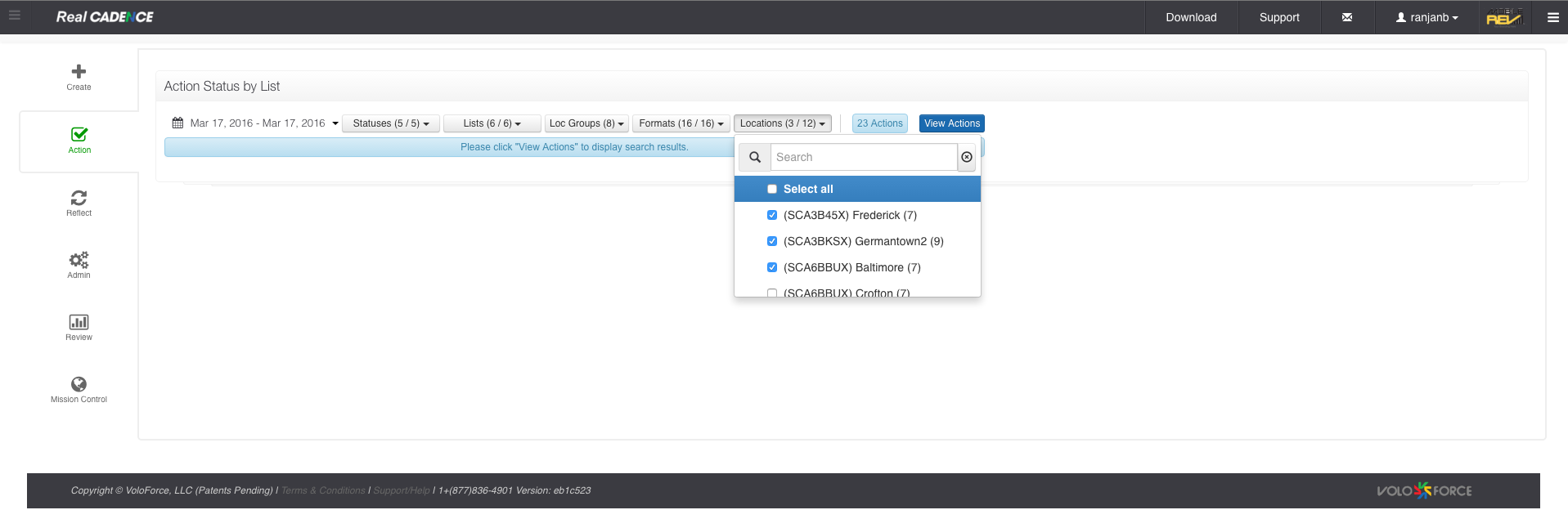
- Select the locations for which you want to review the actions.
- Click View Actions Button.
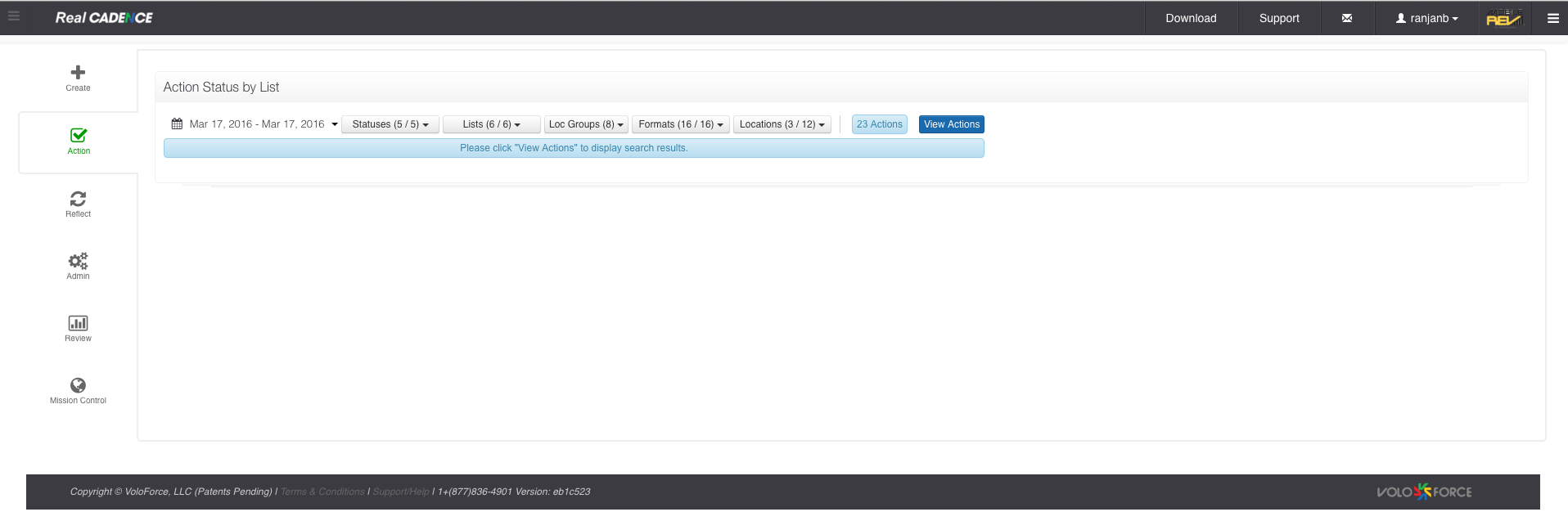
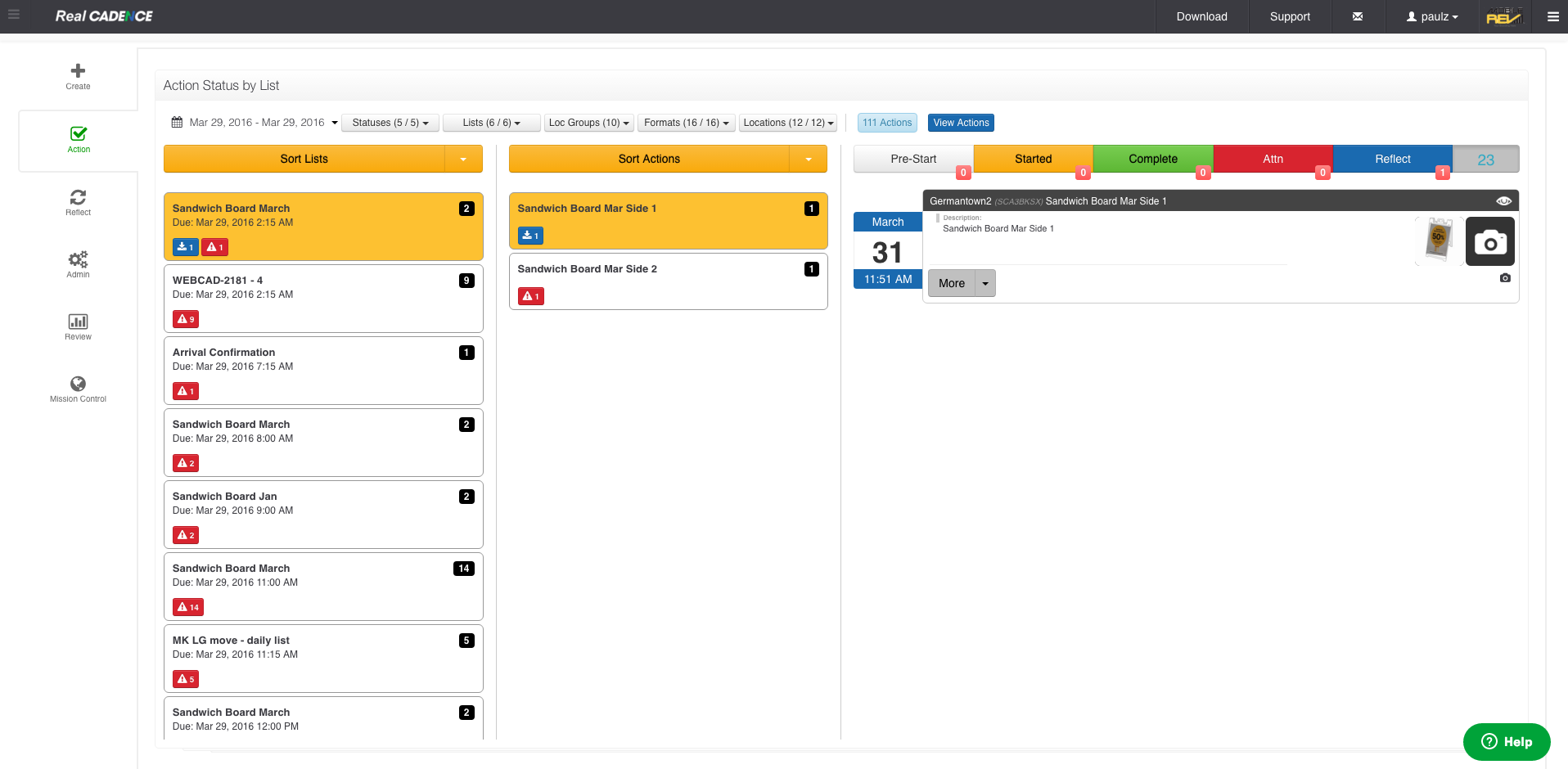
- Click the Action List that you want to audit.
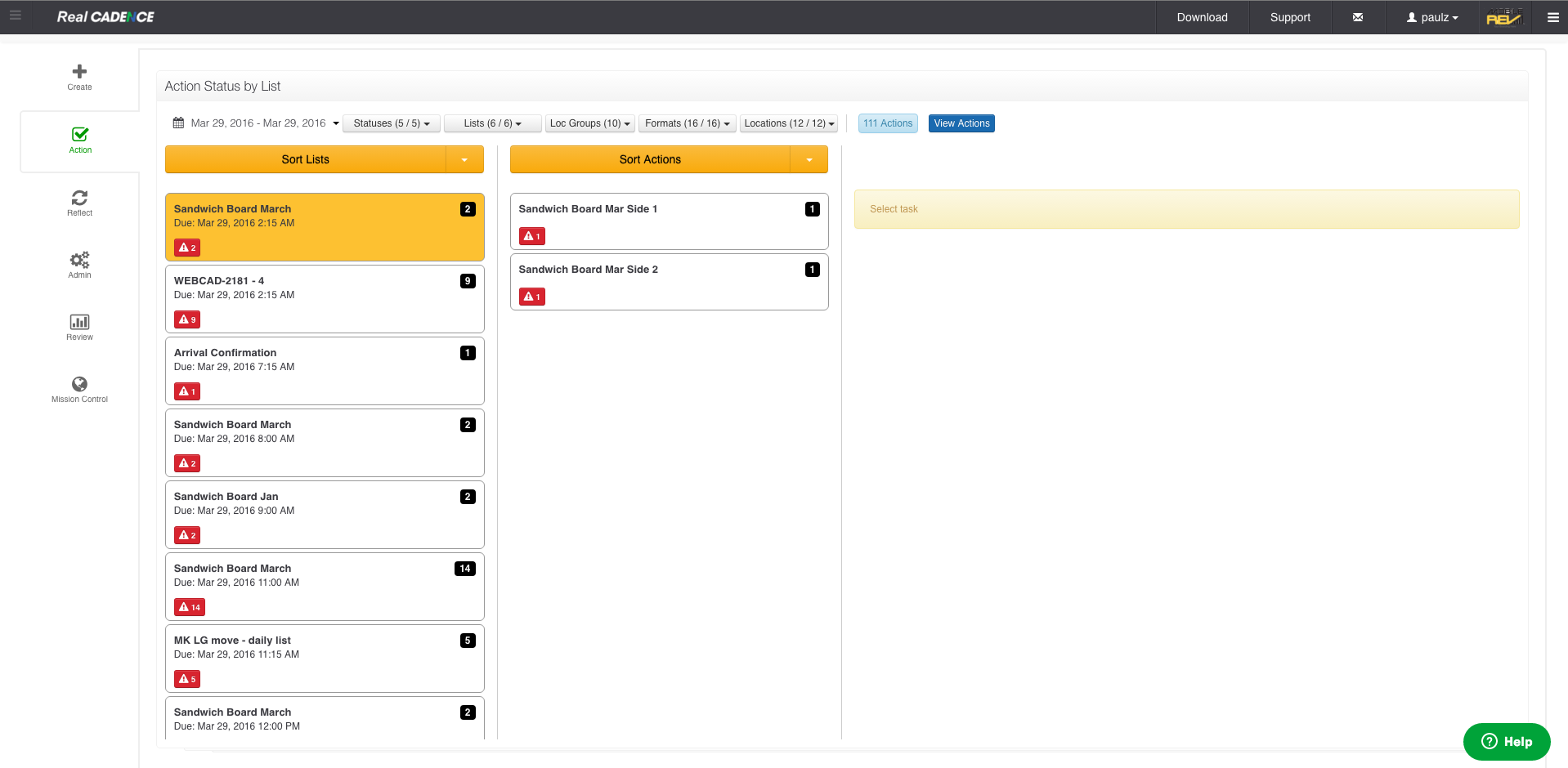
- Click the Action that you want to review for all locations. A list of location actions is displayed in the third column. The date and time of each action is color coded to represent its current status.
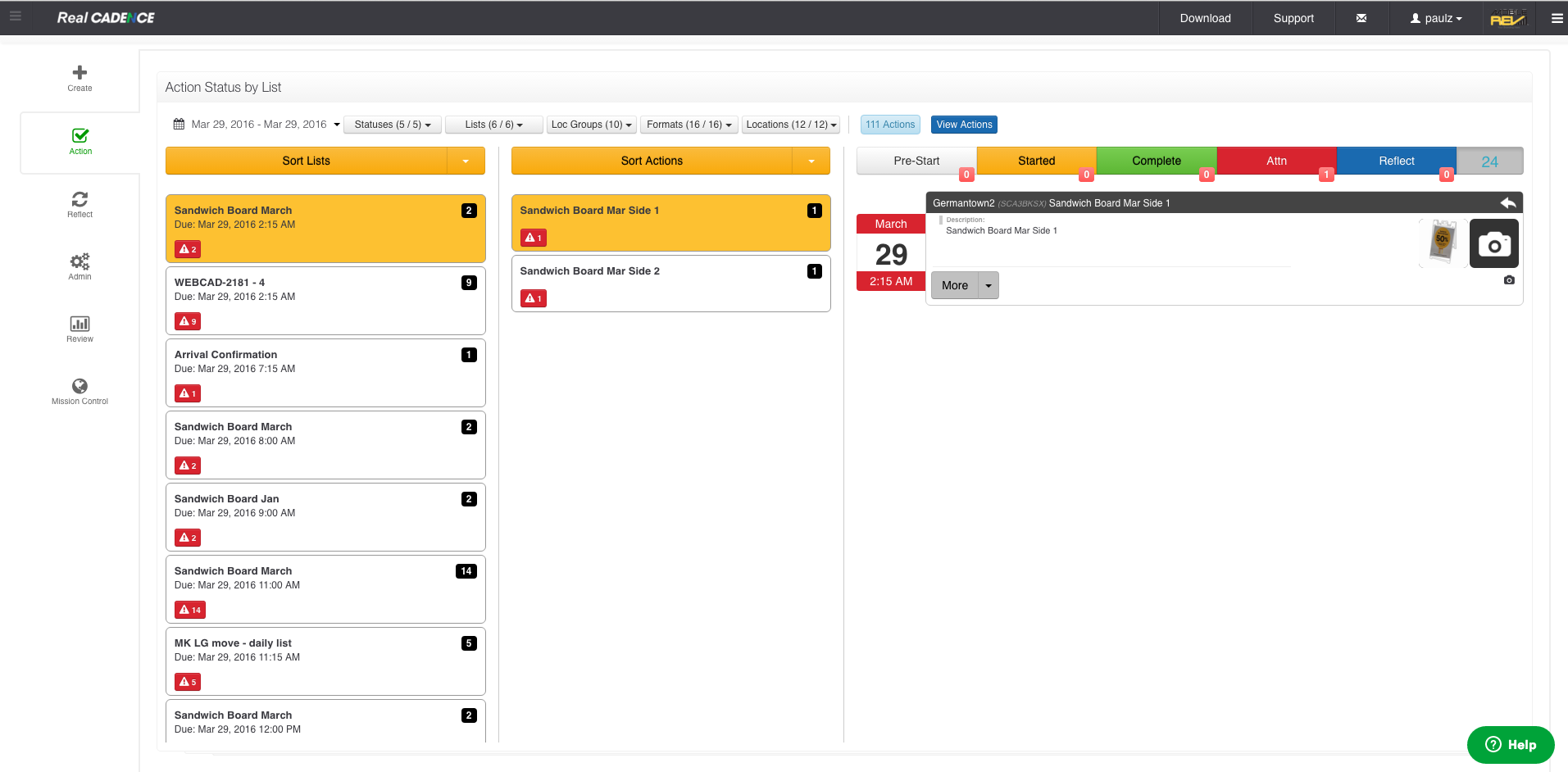
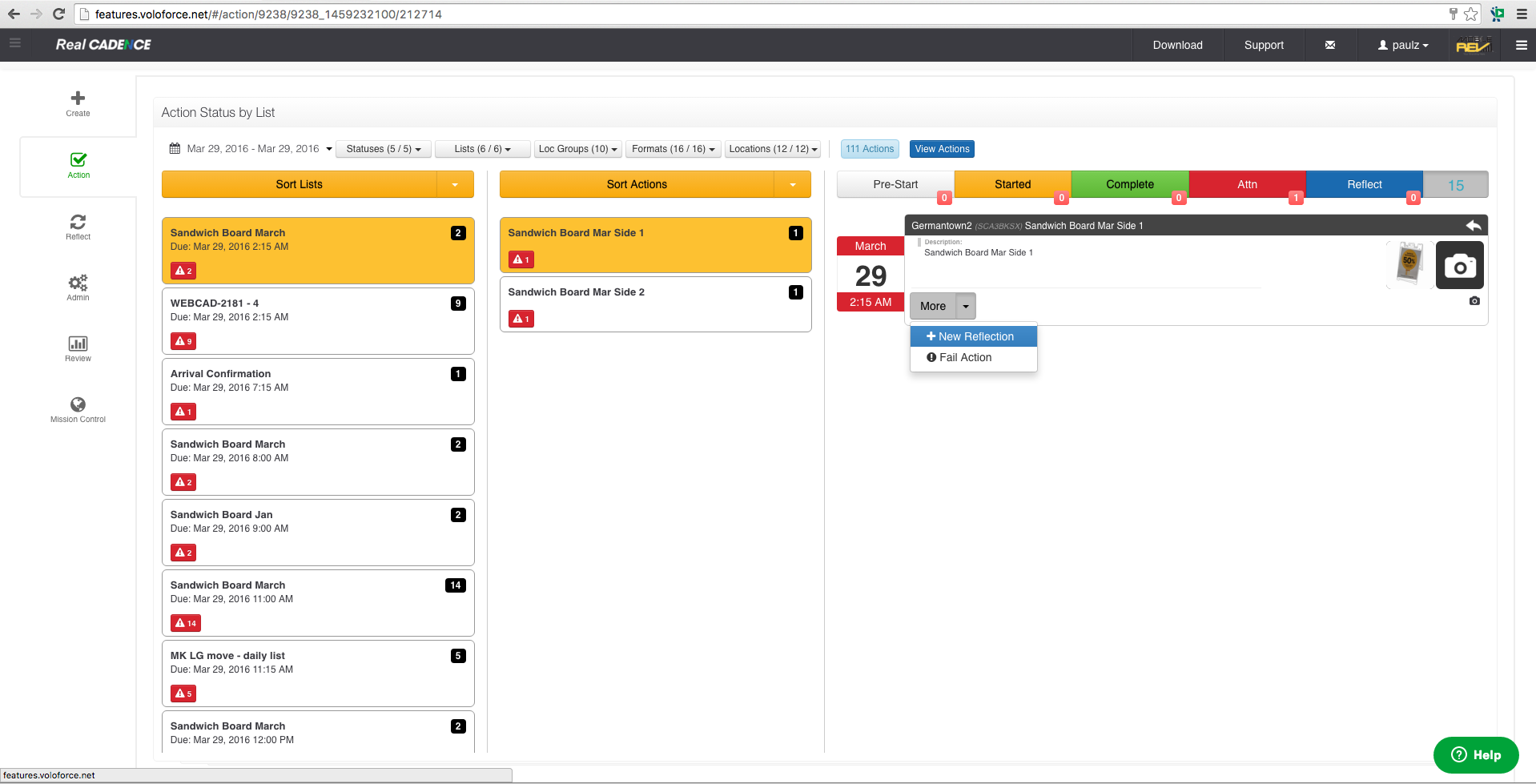
- To Create a reflection, click the More drop-down menu in the action's entry on the list. A pop-up opens to show "New Reflection" as an option. Choose New reflection.
- A Reflection dialog will appear.
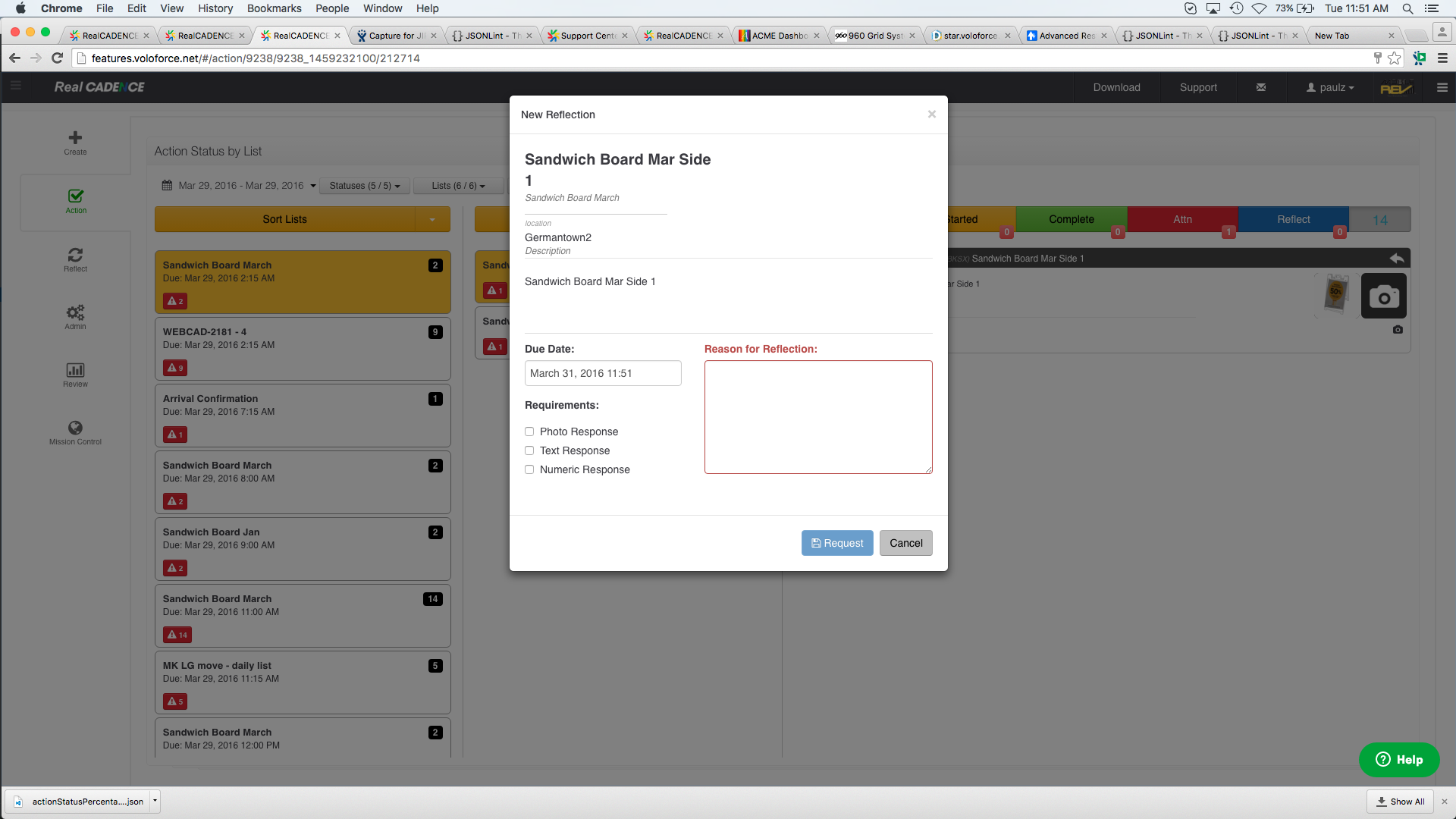
- Select The response that you require for the reflection. Select the due date and enter the description for the reflection.
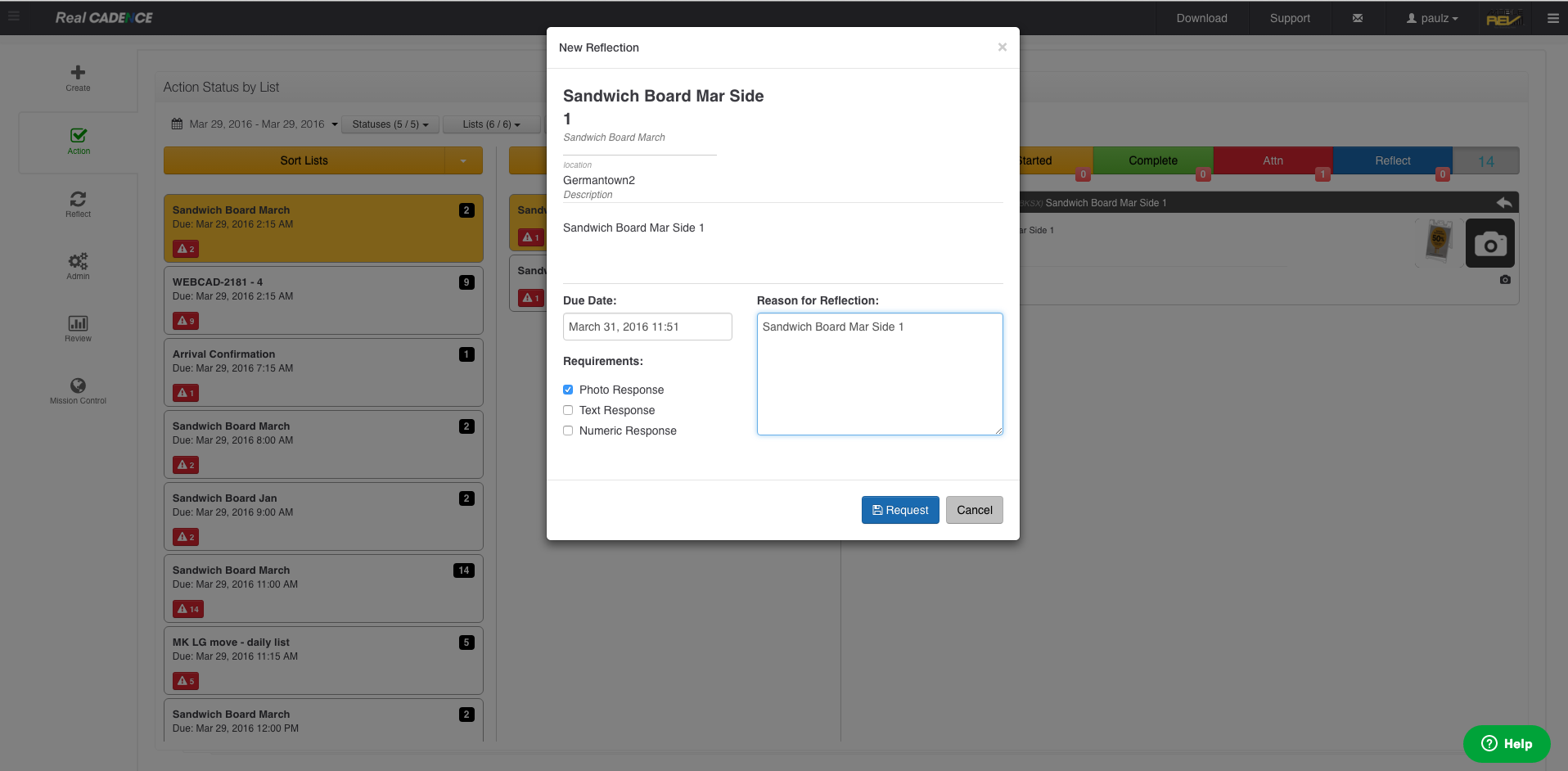
- After you have filled out the required information, click the Request Button. The reflection will be created at this point.
How to: Create A Reflection from Action View

Comments
Please sign in to leave a comment.