- Login into WebCADENCE™.
- Click the Review in the left navigation bar.
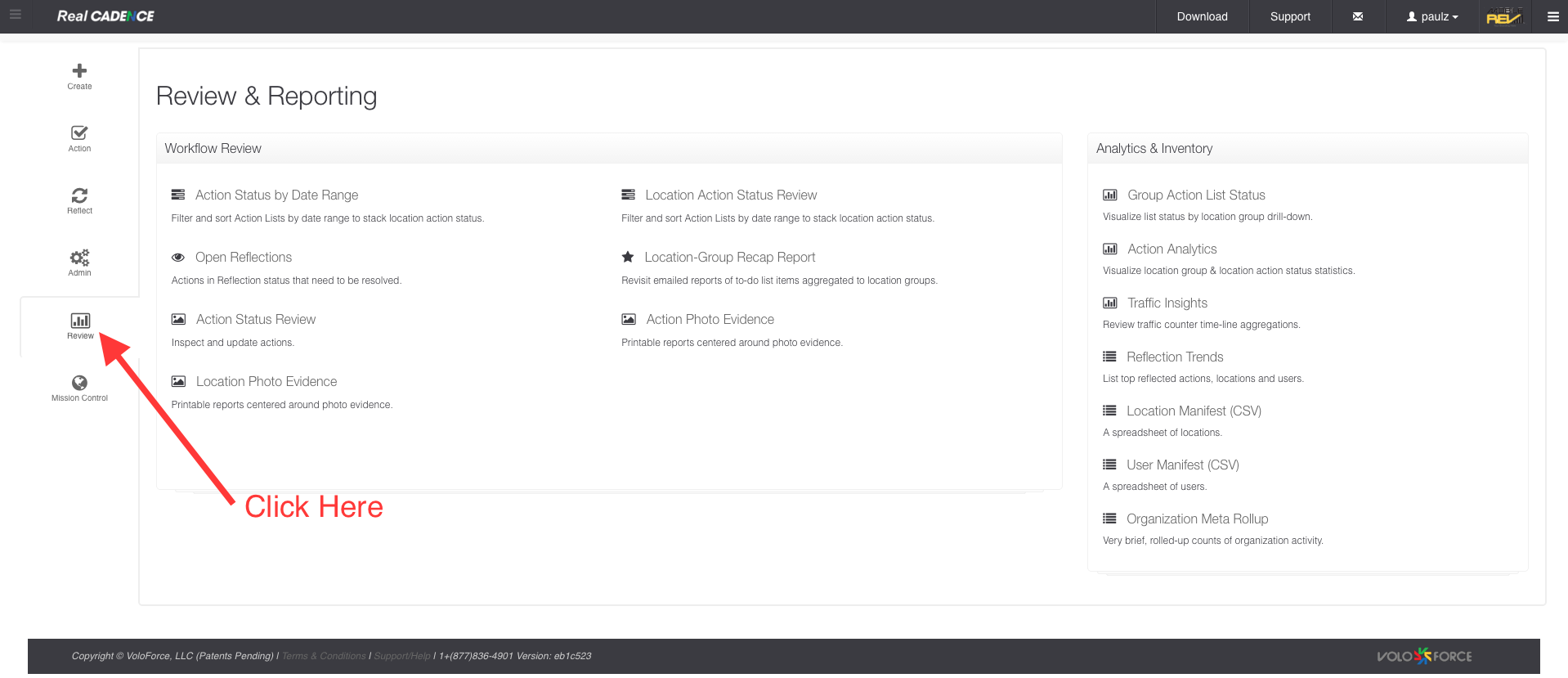
- Click On Action Status By date range link.
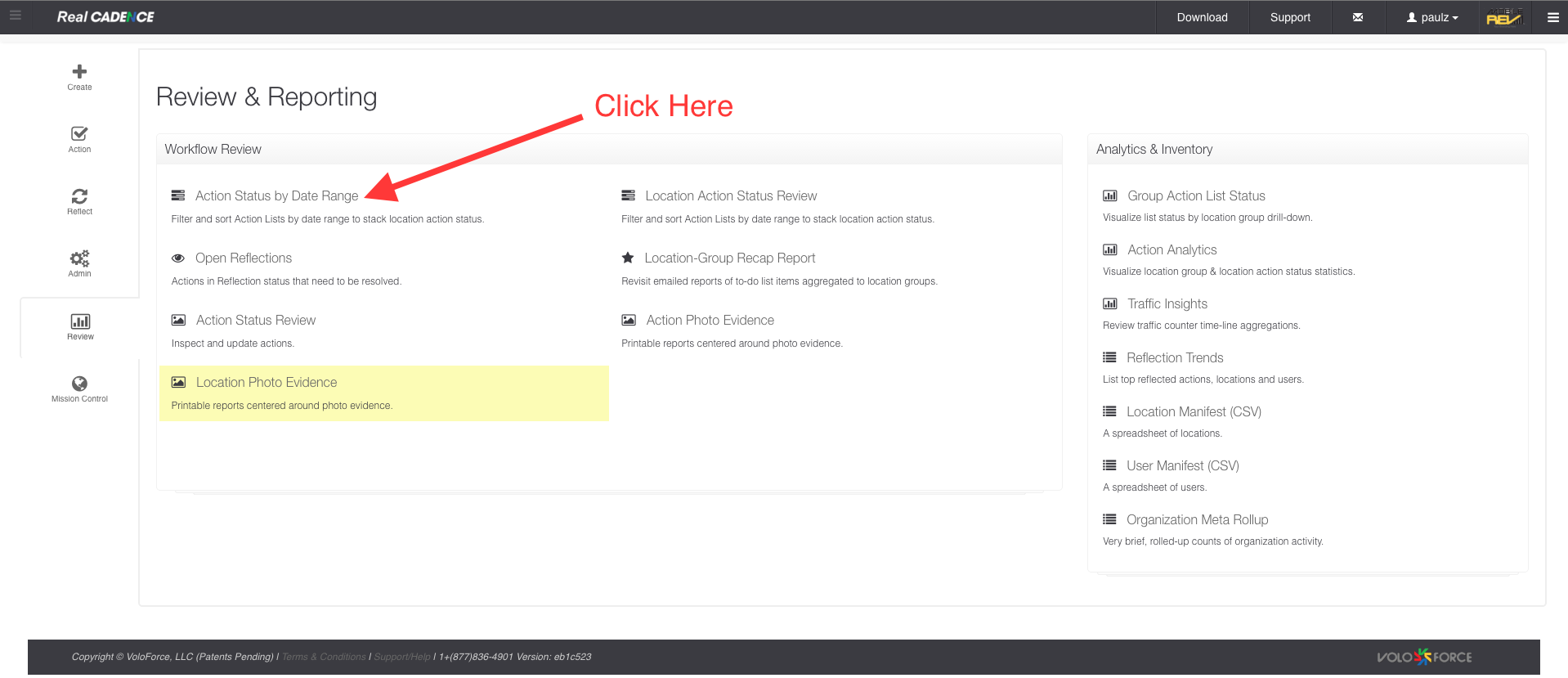
- Select a date range for which you want to review actions.
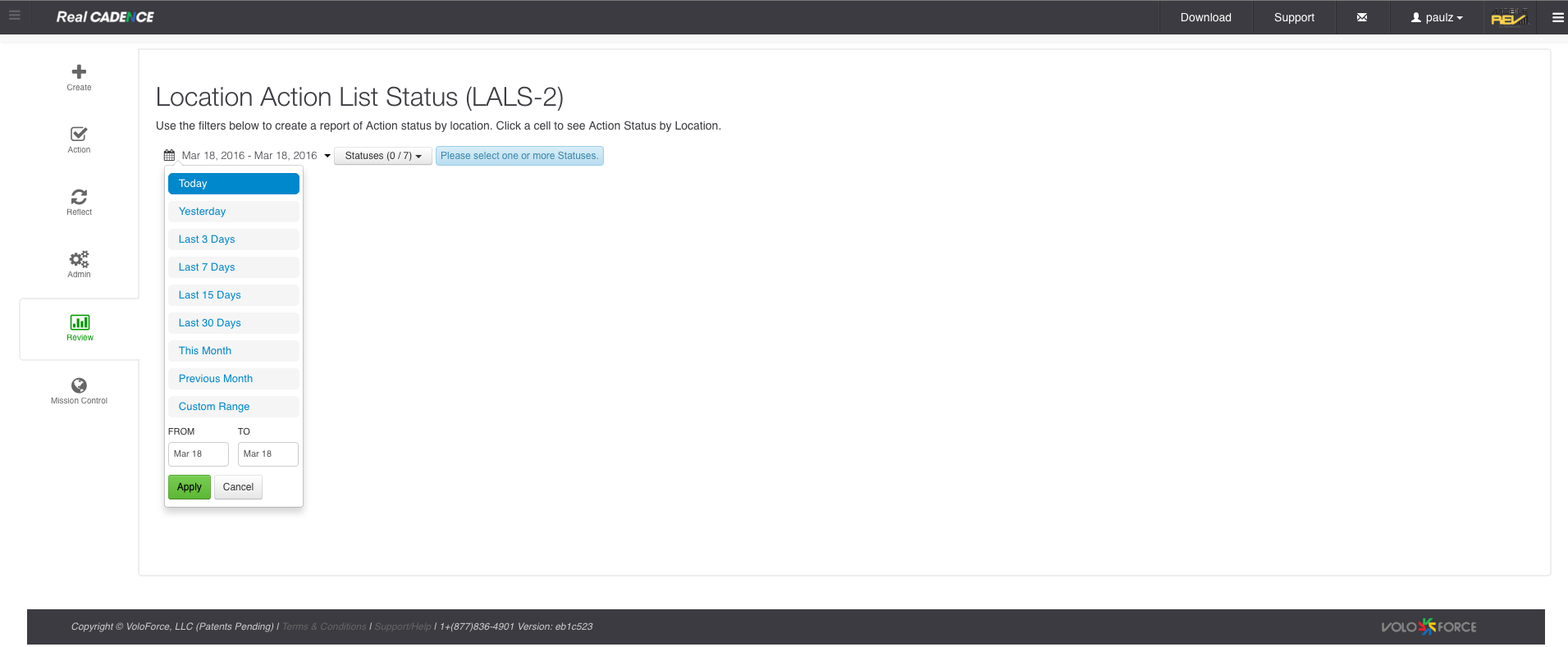
- Select the statuses you want to work on. By default all are selected.
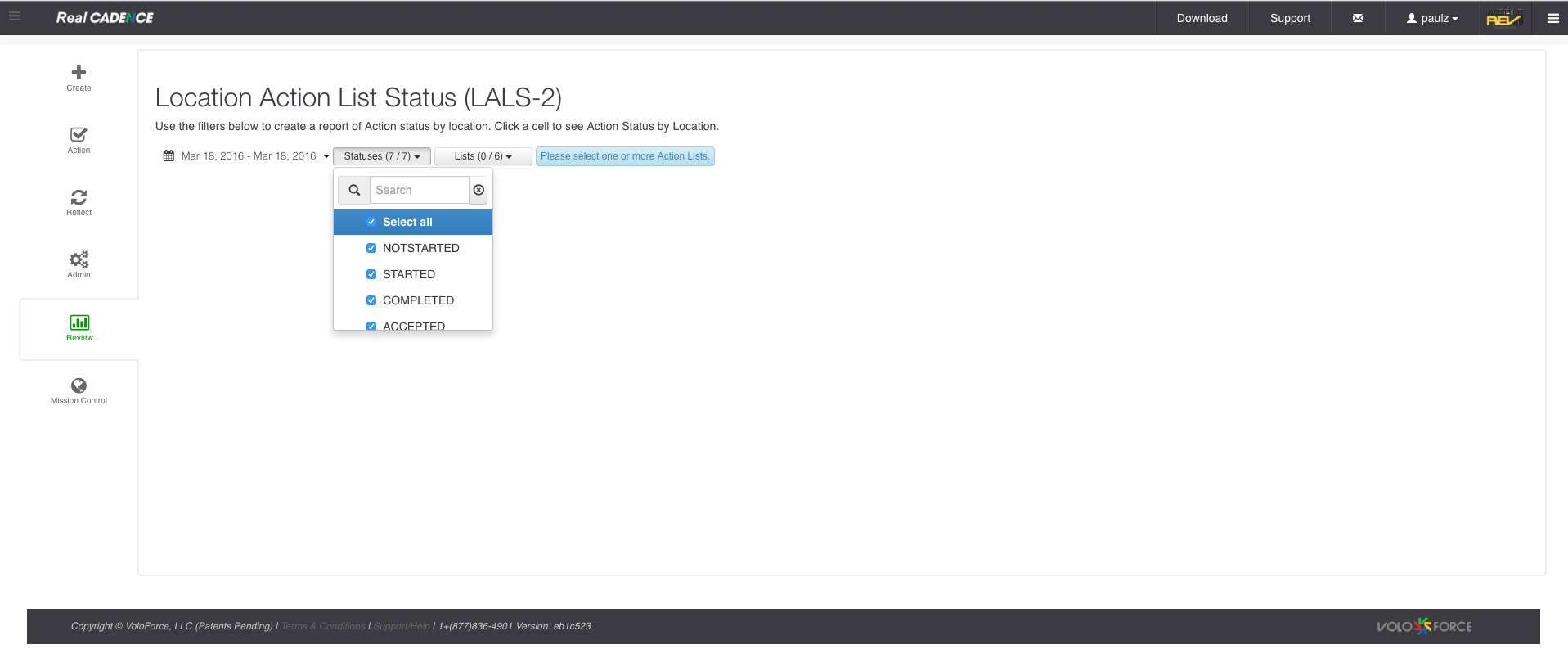
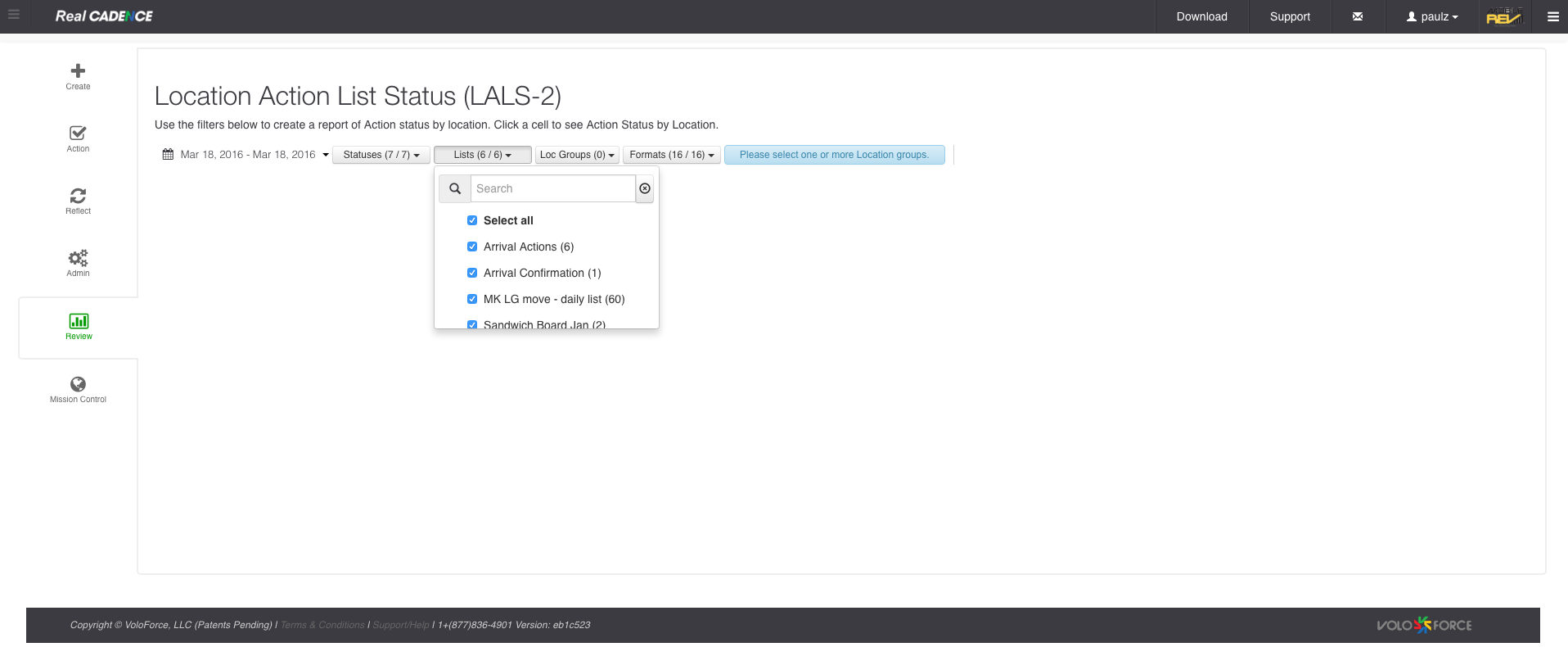
- Select the lists for which you want to do the review.
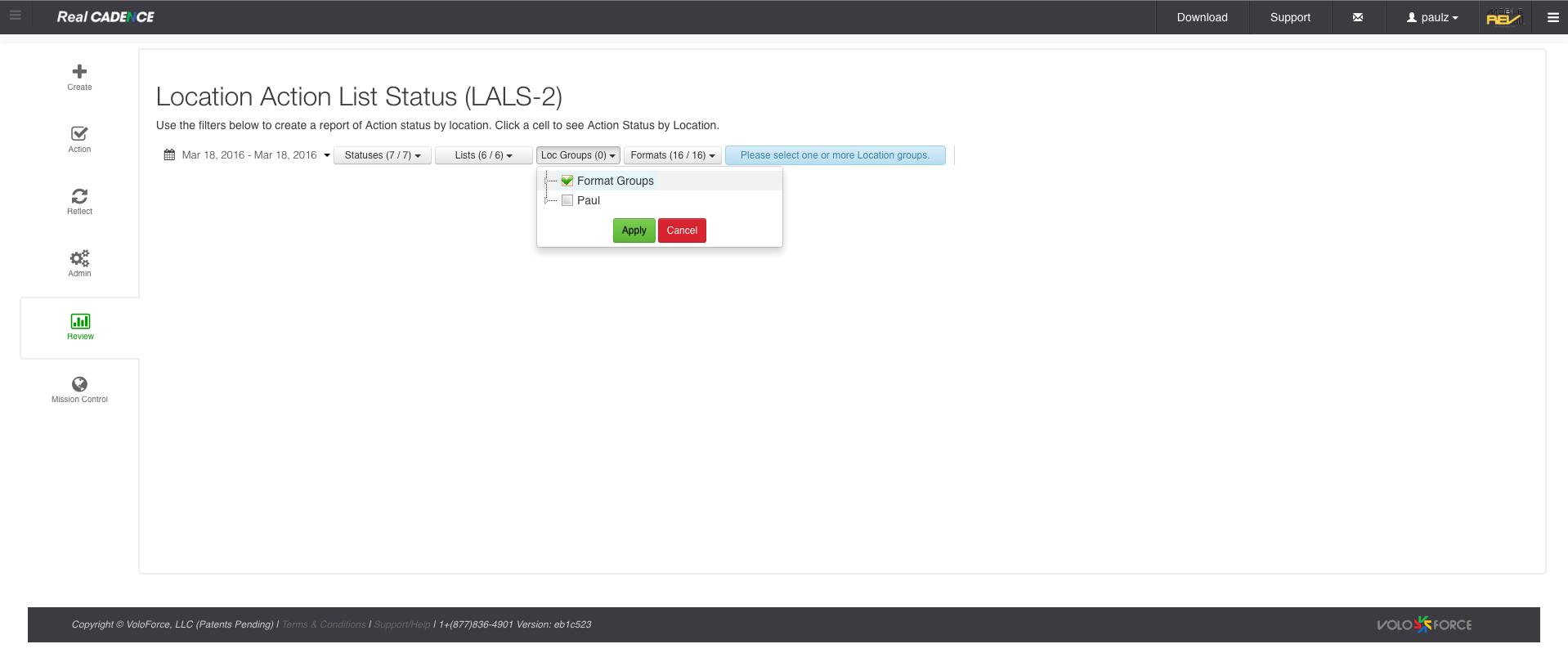
- Select the location group and click Apply Button.
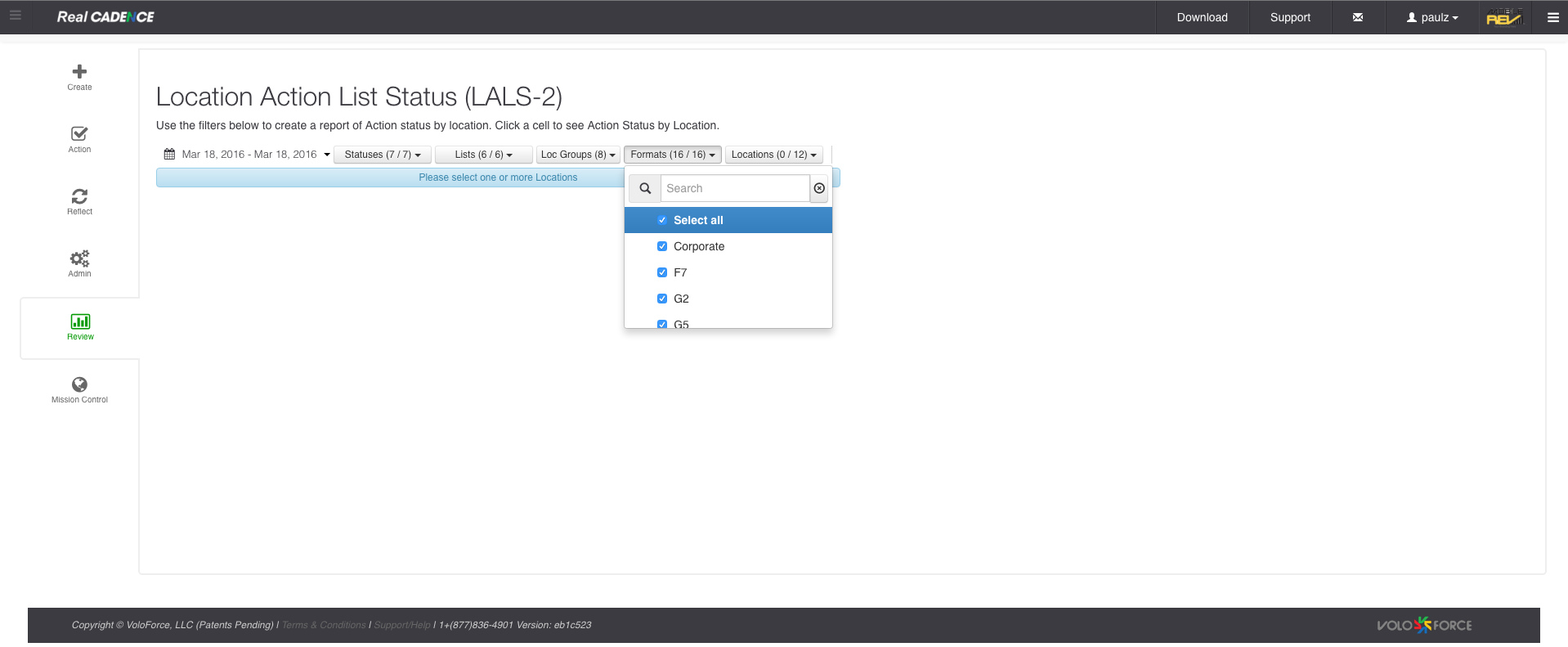
- Select Formats.
- Select the locations for which you want to review the actions.
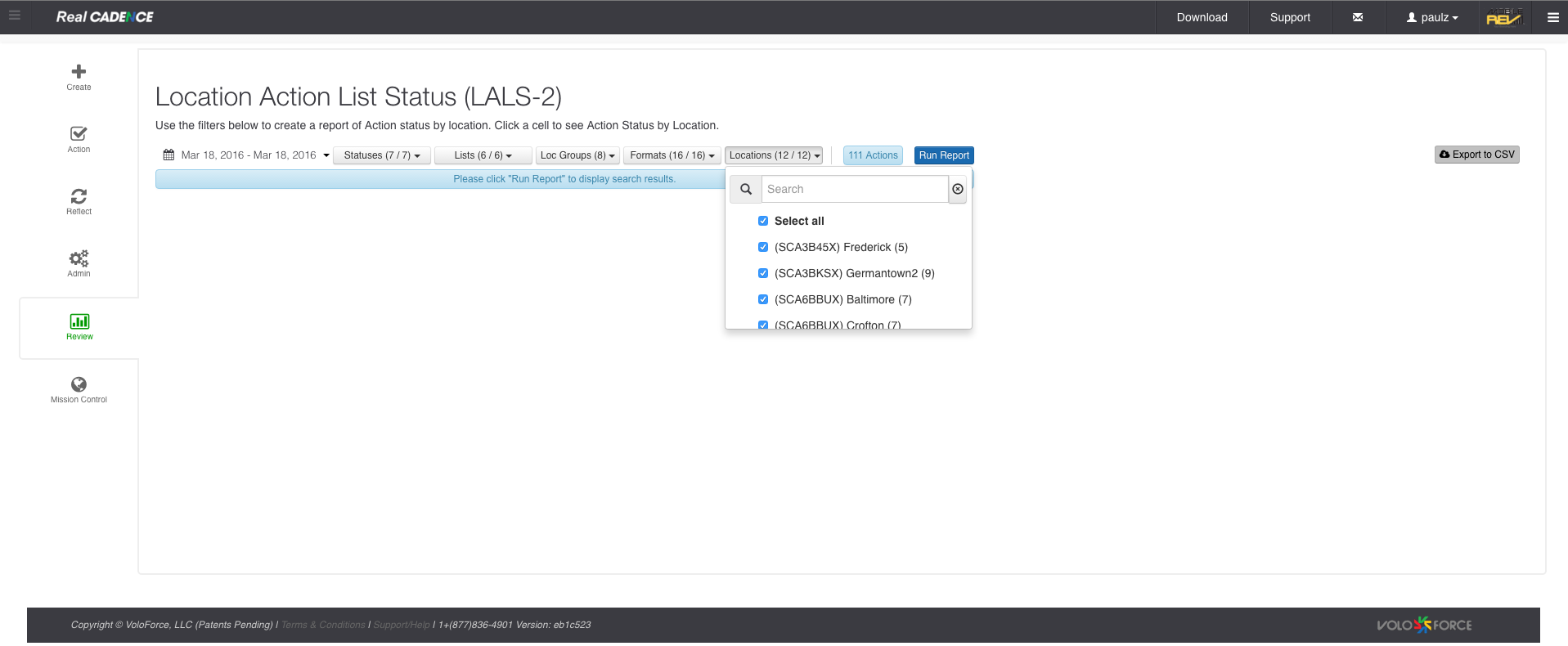
- Click Run Report Button.
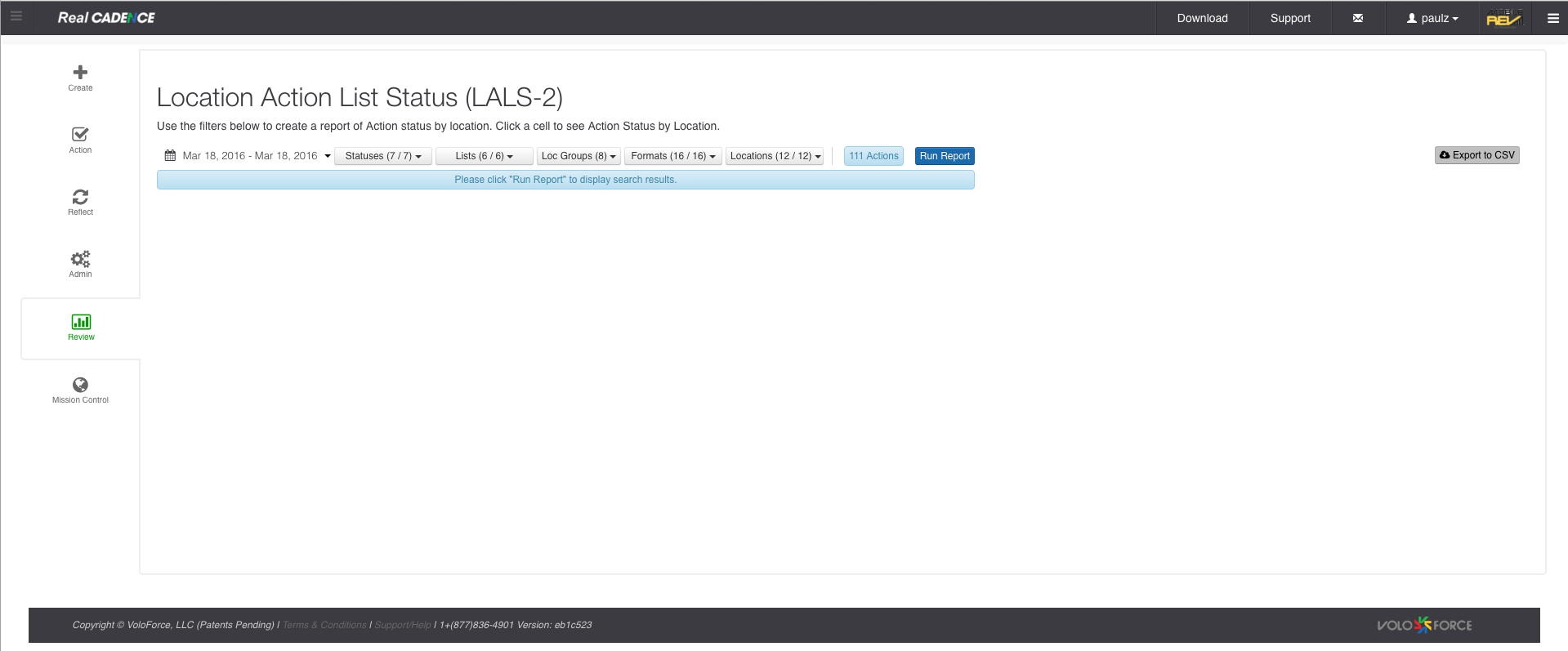
- Click the cell representing an action list for a location to review the actions for that location. The Export to CSV button lets you export the current selection into a csv file and you can download the file.
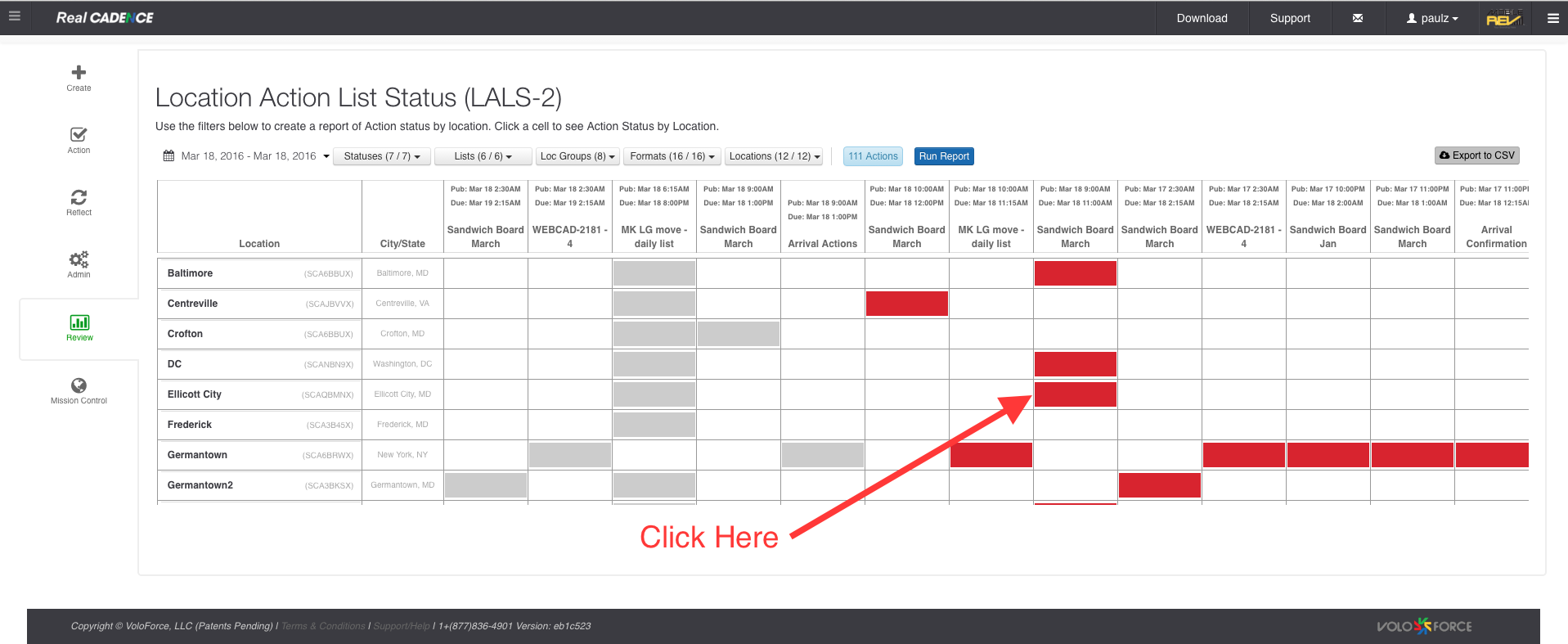
- This will Open a modal dialog displaying all the actions for the action list.
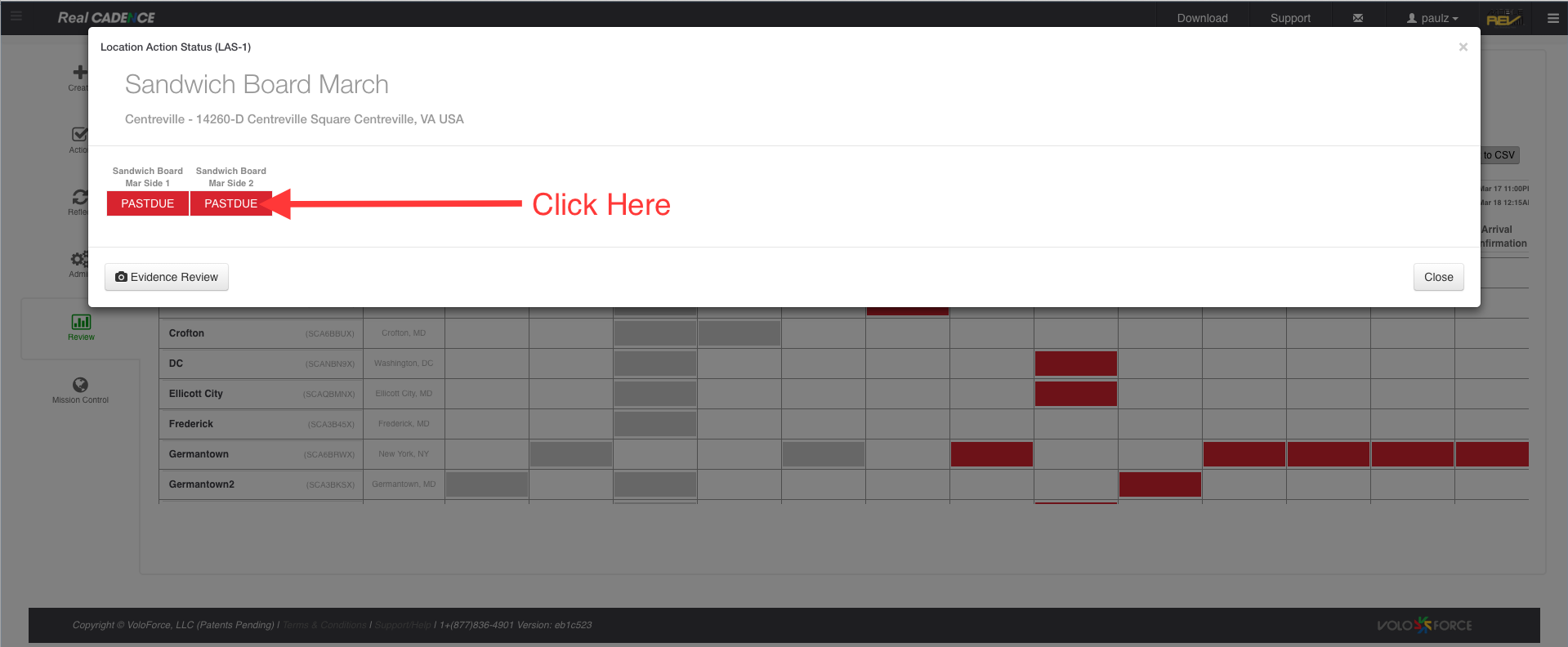
- When you click on the action cell it will open another modal dialog where you can do the action workflow.
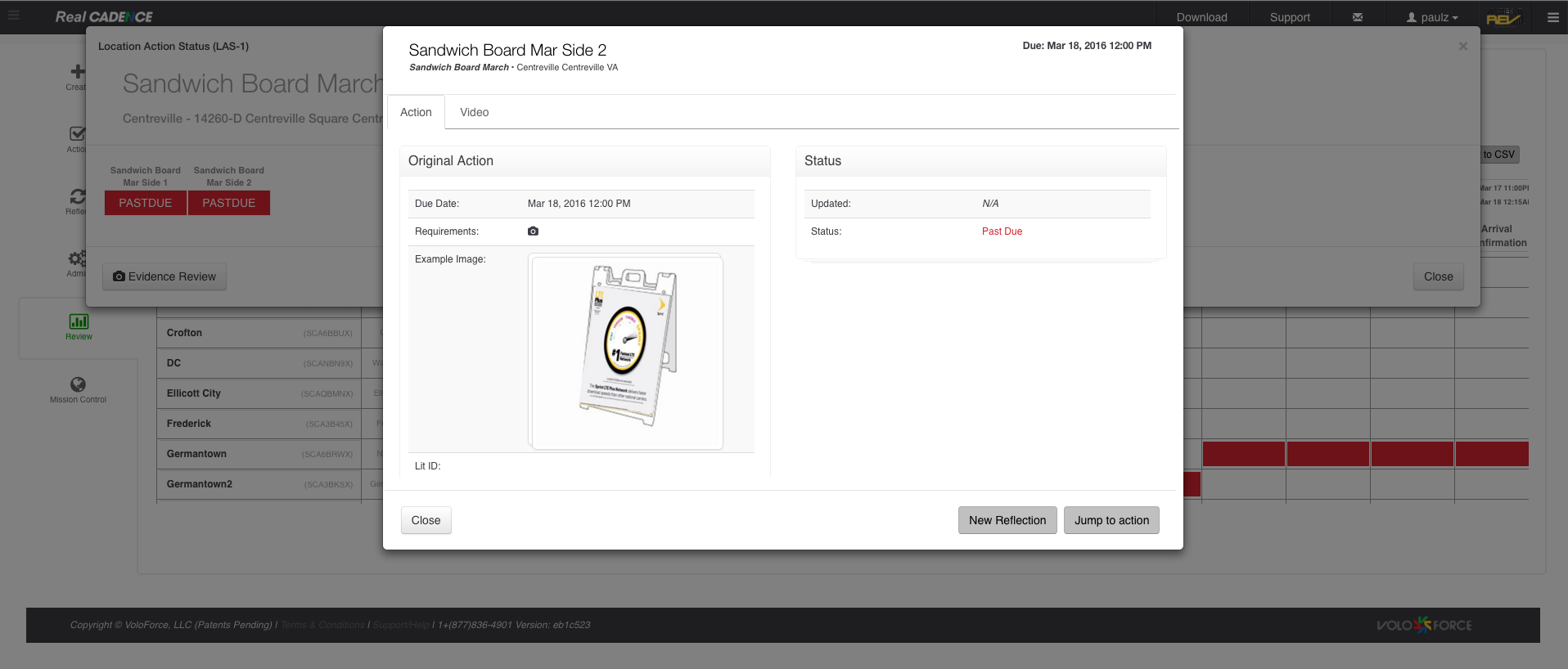
- Click the evidence Review Button on the Location Action Status modal dialog.
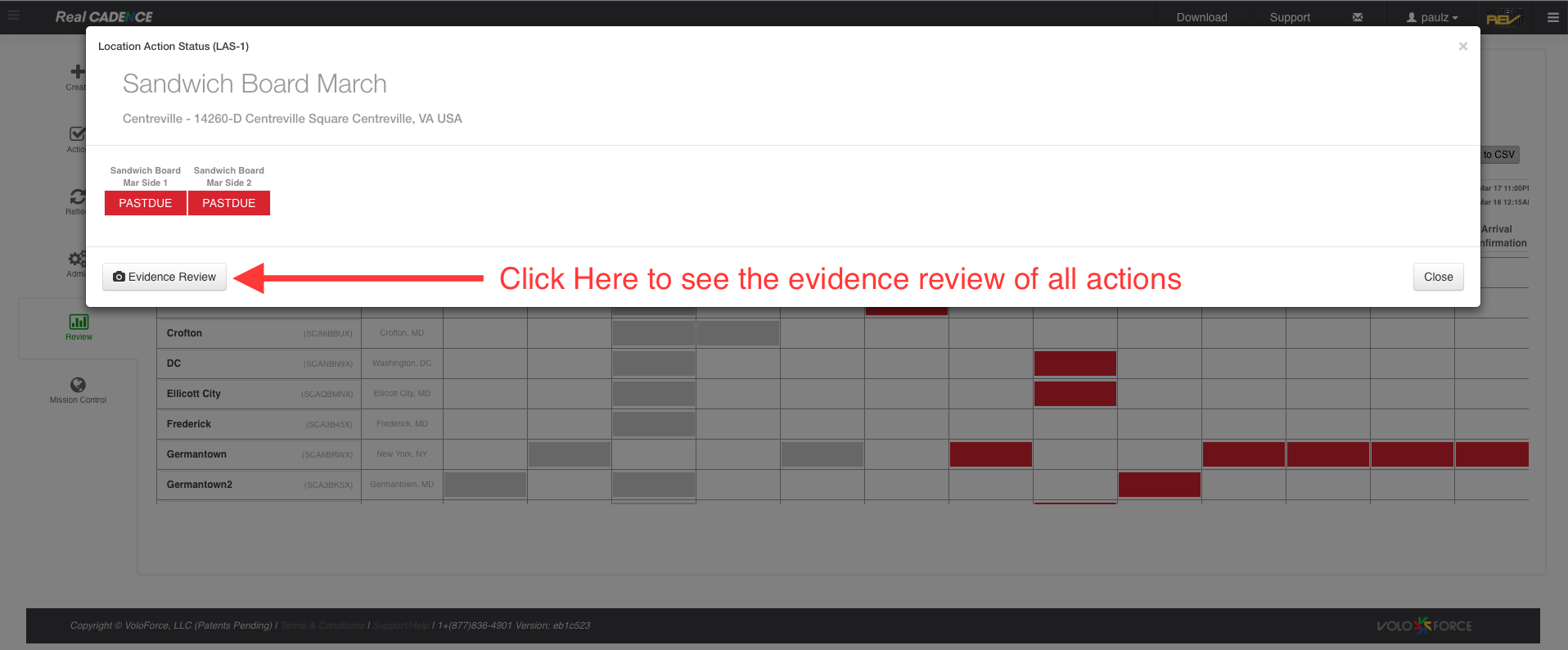
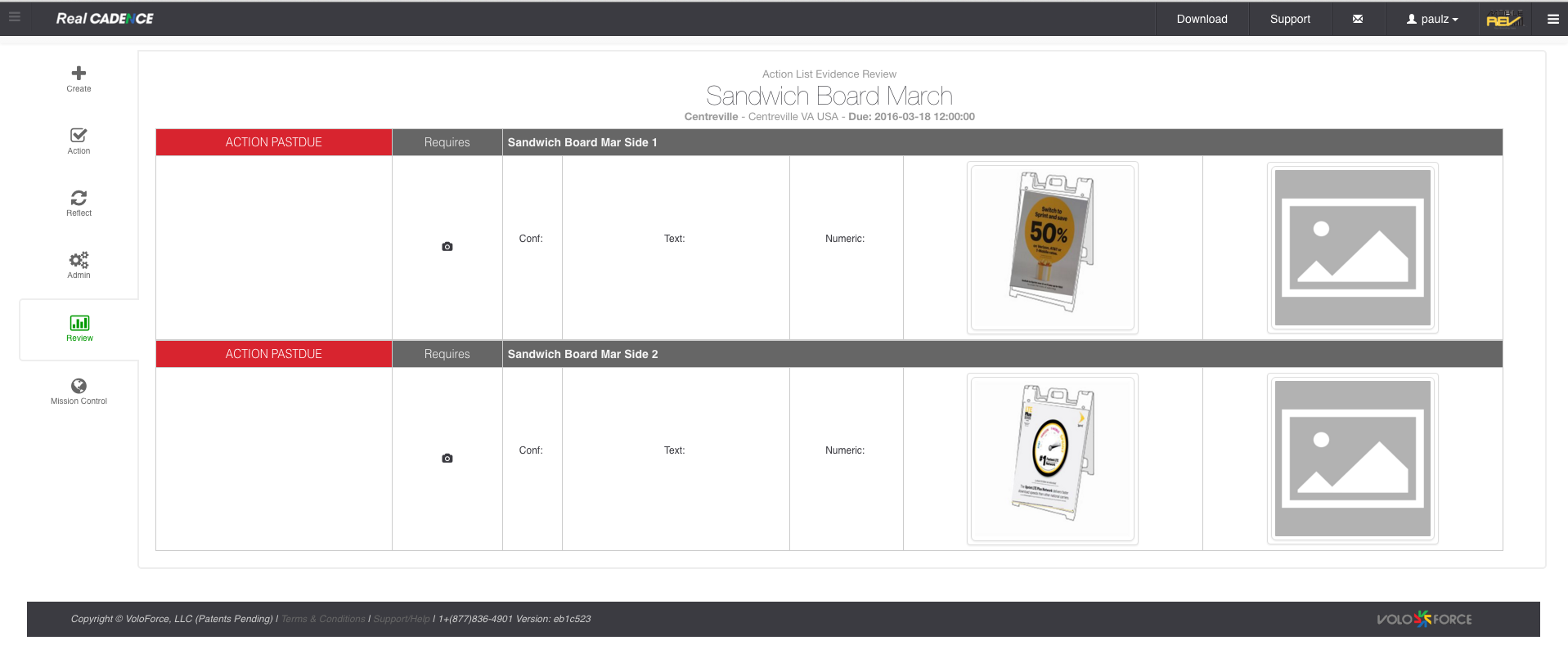
- When you click on the evidence review button it will open the evidence review button which will display the evidence for all the actions in the action list. This is just a read only report.
How-to: View location action list status by date range

Comments
Please sign in to leave a comment.